The sidebar is on every page once you’ve signed in at app.meetfullhouse.com. The top group holds your work, and Workspace holds settings that apply across everything.
Your work
| Sidebar item | What it’s for |
|---|---|
| Dashboard | Totals across all your events, who’s live, what’s coming up, and a getting-started checklist |
| Webinars | Create and manage webinars |
| Challenges | Create and manage multi-day challenges |
| Media | Your uploaded videos, images and downloads |
Workspace settings
| Sidebar item | What it’s for |
|---|---|
| Branding | Name, colour, logo and legal footer |
| Custom domain | Coming soon, depending on your plan: put your public pages on your own address |
| Who your emails come from, and how they’re sent | |
| Team | Invite people to work in your workspace with their own login |
| Plan & usage | Your plan, storage used and emails sent today |
| AI assistant | Connect the AI that answers attendee questions |
| Integrations | Kit, ActiveCampaign, Pinball and GoHighLevel |
| Webhooks | Send events to Zapier, Make or your own systems |
| MCP server | Let AI tools work in your workspace |
| Debug | Look up one registrant’s emails, and retry failed emails, webhook deliveries and automations |
Your name at the bottom of the sidebar opens the account menu:
| Menu item | What it does |
|---|---|
| Settings | Opens your profile, security and appearance settings |
| Theme | Switches the app between light, dark and system, one click at a time. See Choose your theme |
| Log out | Signs you out of this browser |
On a phone or small tablet the sidebar is hidden. Use the menu button at the top right to slide it in. Your name and the account menu are at the bottom.
Inside a webinar
Opening a webinar shows the same set of tabs every time. The buttons above them copy your registration link, preview the page, publish or pause, and duplicate or delete the webinar.
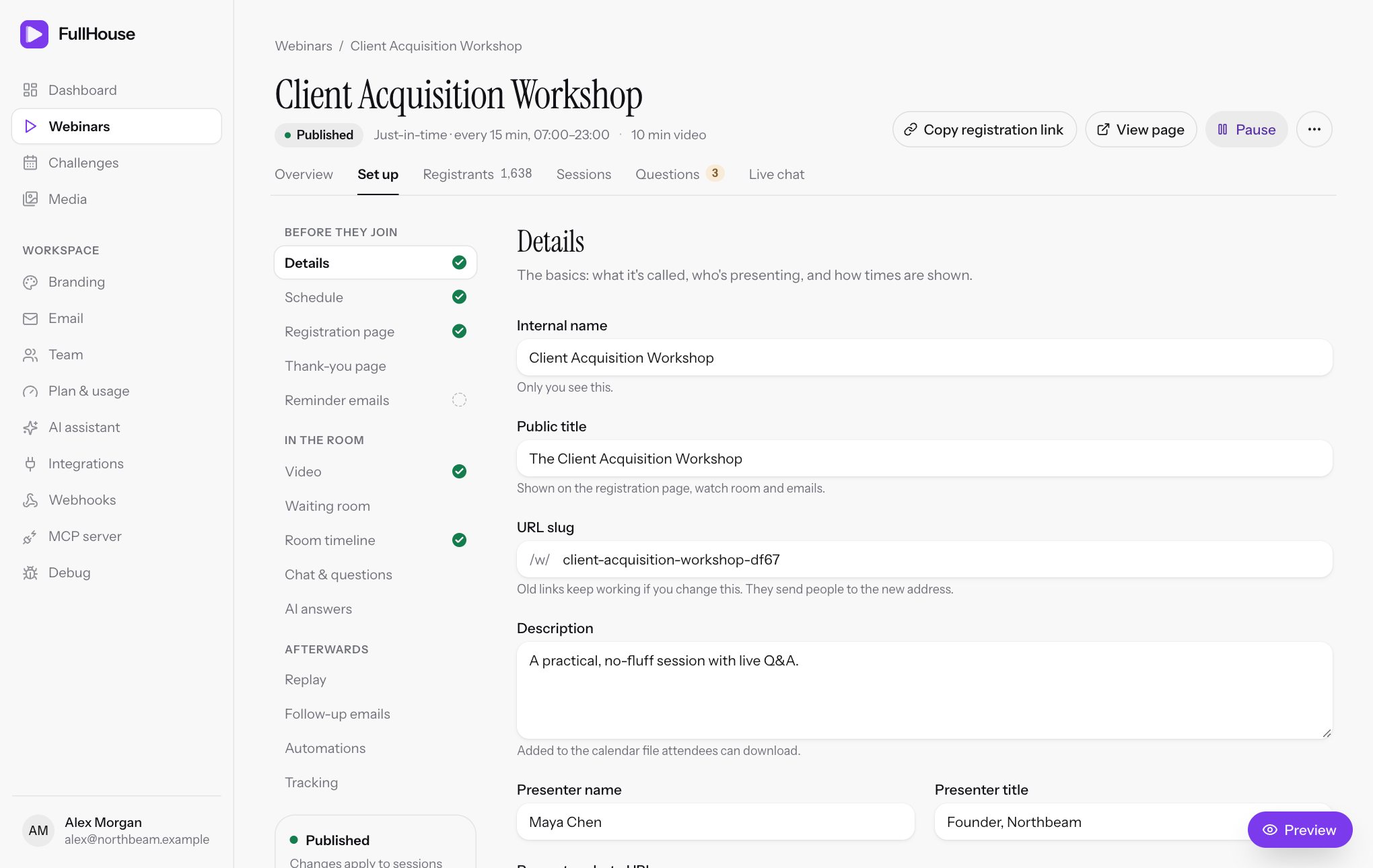
| Tab | What it’s for |
|---|---|
| Overview | The report: registrations, attendance, retention and sources |
| Set up | Every setting, in order, from details to going live |
| Registrants | Who signed up, and everything about each person |
| Sessions | Each start time and who’s in it |
| Questions | Private questions from attendees |
| Live chat | Talk to the room and moderate it |
Inside a challenge
A challenge has four sections: Basics, Sign-up page, Hub & days and Tracking. Its More actions menu has Duplicate and Delete…. Each day’s card has a Room & video button, which opens that day’s webinar with the tabs above. See Challenges.
The Set up steps
Set up is organised around the attendee’s journey, so you can work top to bottom.
| Group | Steps |
|---|---|
| Before they join | Details, Schedule, Registration page, Thank-you page, Reminder emails |
| In the room | Video, Waiting room, Room timeline, Chat & questions, AI answers |
| Afterwards | Replay, Follow-up emails, Automations, Tracking |
| Go live | Pre-publish checks, publishing and your links |