Automations push attendees into your CRM when they do something that matters: registering, showing up, reaching a watch milestone, seeing or clicking your offer, or opening the replay. Use them to start the right sequence at the right time, such as sending your pitch only to people who watched at least half.
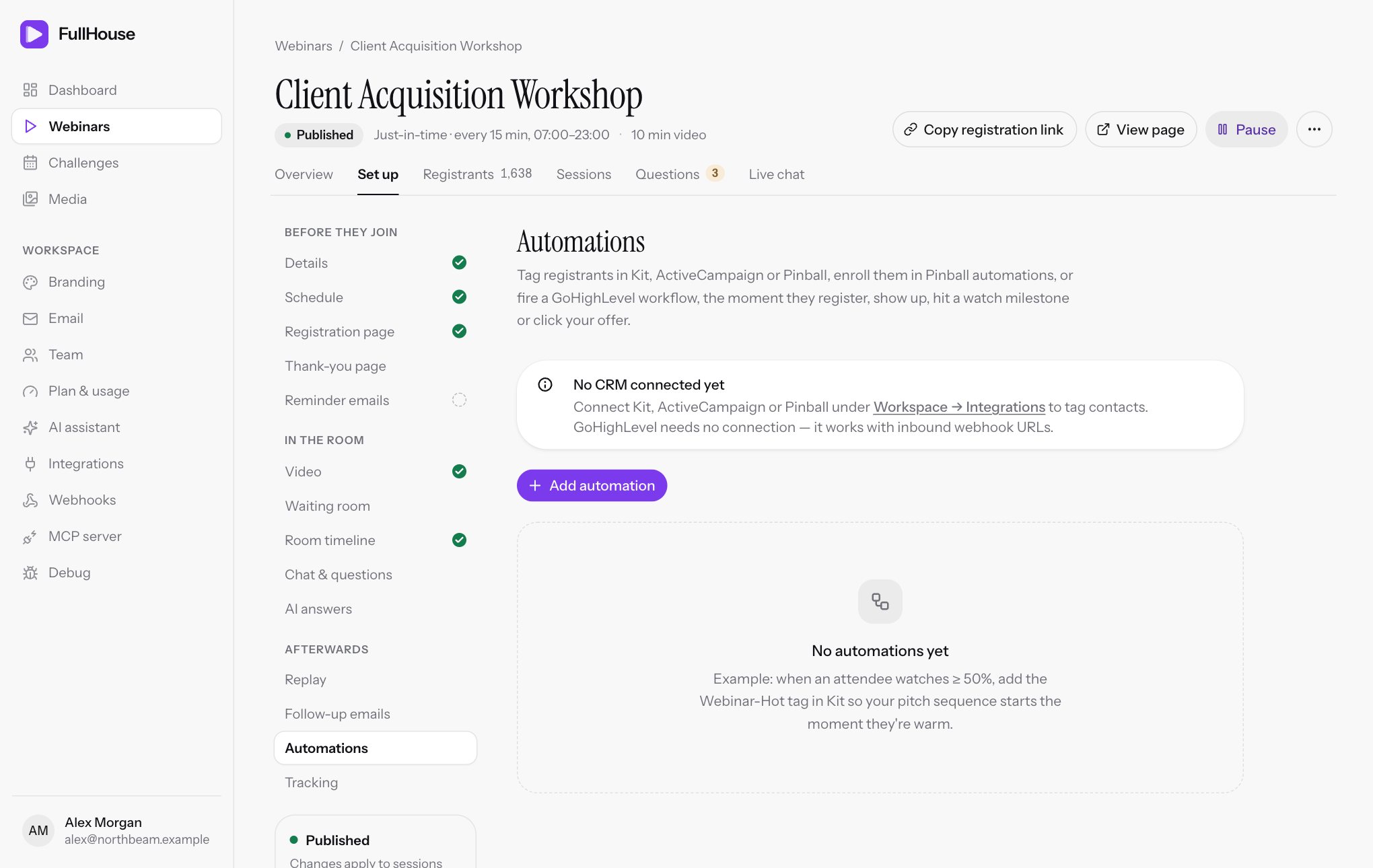
Set them up under Webinars → your webinar → Set up → Automations. Each one is a rule with one trigger and one destination. They work with Kit, ActiveCampaign, Pinball and GoHighLevel.
Before you start
Connect Kit, ActiveCampaign or Pinball under Workspace → Integrations. Until you have, the step shows No CRM connected yet, and Send to only offers GoHighLevel, which needs no connection.
Add an automation
Click Add automation
The rule opens in a dialog.
Pick the trigger
Choose what the attendee has to do under When an attendee…. If you pick Watches at least…, also choose a percentage under Watched at least.
Pick the destination
Under Send to, choose a tool. Only connected tools appear, plus GoHighLevel. Changing the tool clears anything you’d already picked for the old one.
Choose what happens there
The fields depend on the tool. See What each tool does.
Save it
Leave Active on and click Add automation. The button stays disabled until the rule is complete.
Test with your own email before you send traffic: register on your public link, then check the contact in your CRM.
Triggers
| When an attendee… | Fires when | Live or replay |
|---|---|---|
| Registers | A new registration comes in, from your registration page, an embedded form, Pinball, an AI assistant or the Add registrant button on the Registrants tab. On a challenge, a sign-up runs each day’s Registers rules once. Someone registering again for a session they already have doesn’t count. | Not applicable |
| Joins the live room | They first enter the live session once it has started. Waiting in the waiting room doesn’t count. | Live only |
| Watches at least… | Their time played reaches 10%, 25%, 50%, 75%, 90% or 100% of the video. | Live only |
| Sees the offer | Any offer on your timeline appears for them. | Both |
| Clicks the offer | They click the button on any offer. | Both |
| Opens the replay | They first press play on the replay. | Replay only |
The only condition you can add is the percentage for Watches at least…. A rule has no other filters: to treat groups differently, use different tags and let your CRM do the sorting.
Watches at least… counts time actually played, not position in the video. Someone who joins at the halfway mark and stays to the end has watched about 50%, not 100%.
Sees the offer and Clicks the offer apply to every offer on the webinar, and you can’t aim a rule at one offer. With several offers, the rule runs for whichever comes first.
What each tool does
Kit
| Field | What it does | Limits |
|---|---|---|
| Apply tags | The tags to add. Tick them from the list. | 1 to 20 |
FullHouse creates or updates the subscriber in Kit using their email and first name, then applies the tags. Last name, phone and registration answers aren’t sent.
The list comes from your Kit account. If it says No tags cached yet, click Refresh tags. New tags you add in Kit also need a refresh before they show here. You can’t create a Kit tag from this dialog.
ActiveCampaign
| Field | What it does | Limits |
|---|---|---|
| Apply tags | The tags to add. Tick them from the list. | 1 to 20 |
FullHouse creates or updates the contact using their email, first name, last name and phone, then applies the tags. Registration answers aren’t sent.
Click Refresh tags to pull your tags. Only contact tags are listed, and only the first 100 that ActiveCampaign returns. If you have more than that and one is missing, this list can’t show it.
Pinball
| Field | What it does | Limits |
|---|---|---|
| Add tags | Tags to add. Tick existing ones, or type a new name and click Add to have Pinball create it. | Up to 25, each up to 64 characters |
| Remove tags | Tags to take off, which suits moving someone from “registered” to “attended”. | Up to 25, each up to 64 characters |
| Enroll in automations | The Pinball automations to start. | Up to 10 |
You need at least one of the three. FullHouse creates or updates the contact in Pinball first, then makes the changes. Tags in Pinball can unlock courses and start tag automations.
An automation that isn’t active in Pinball shows its status beside its name, such as (draft — won't enroll until active). Activate it in Pinball for enrollments to work. If the list says No Pinball automations found, build one in Pinball and click Refresh.
Pinball also receives the email, name and phone, the webinar’s name, the watch percentage, whether they clicked an offer, the time they registered and their UTM values.
GoHighLevel
| Field | What it does | Limits |
|---|---|---|
| Inbound webhook URL | The address of a GoHighLevel workflow with the Inbound Webhook trigger. | Must be a public https:// address, up to 500 characters |
There’s no connection to set up and no tag picker. Each rule posts to one workflow, and you do the tagging there. The GoHighLevel guide has the steps. Each run sends this:
{
  "event": "watched_percent",
  "webinar_id": 12,
  "webinar_title": "Scaling with evergreen webinars",
  "email": "[email protected]",
  "first_name": "Ada",
  "last_name": "Lovelace",
  "phone": "+44 7700 900123",
  "watch_percent": 75,
  "offer_clicked": true,
  "utm": { "source": "newsletter" },
  "registered_at": "2026-06-10T14:03:00+00:00"
}
event is one of registered, attended, watched_percent, offer_seen, offer_clicked or replay_viewed. watch_percent and offer_clicked describe the live session as it stood when the rule ran, so a registered event shows 0 and false. utm has only the values that person came in with, or is null.
Your first test run is what lets you map these fields in GoHighLevel, so register a test attendee before you build the rest of the workflow.
How rules behave
- Once per person. A rule runs one time for each registration. Someone registered for two different sessions counts as two registrations.
- From now on. A new rule only reacts to things that happen after you save it. It doesn’t go back over people who’ve already registered or watched. To reach them, export and import into your CRM.
- Paused rules skip people. With Active off, the card shows a Paused chip and the rule stops firing. Anyone who triggers it during that time isn’t caught up when you turn it back on, unless they trigger it again later.
- Editing is safe but doesn’t re-run. People the rule has already run for won’t be processed again under the new settings.
- Nothing is undone in your CRM. Pausing, editing or deleting a rule leaves existing tags and enrollments as they are.
- Several rules can share a trigger. Each runs by itself. If you want a Kit tag and a Pinball tag on registration, add two rules.
Examples
| Goal | Rule |
|---|---|
| Start your pitch sequence for warm viewers | Watches at least… 50% → Kit, tag Webinar-Hot |
| Move someone along a pipeline | Joins the live room → Pinball, add Attended, remove Registered |
| Chase people who were interested but didn’t click | Sees the offer → ActiveCampaign, tag Saw offer, and let a CRM automation exclude Clicked offer |
| Alert sales | Clicks the offer → GoHighLevel, a workflow that creates an opportunity |
| Follow up replay viewers | Opens the replay → Pinball, enroll in your replay follow-up automation |
Check that a rule is working
Each rule’s card shows a sentence such as When attendee watches ≥ 50% → Kit: add tag Webinar-Hot. Under it you’ll see:
- Runs: how many have completed.
- Failed: how many gave up, in red.
- The latest error, in red, which clears after the next success.
A run that fails with a temporary error is tried up to 3 times, after about 30 seconds and then about 5 minutes. A permanent error, such as a rejected key, fails straight away. Failed runs are listed under Failed automations on Debug, where you can fix the cause and retry each one.
Errors
| Message | What it means | What to do |
|---|---|---|
Integration returned HTTP 401. or 403 |
The tool rejected your key. | Update the connection under Workspace → Integrations. |
Integration returned HTTP 404. |
The tag or the GoHighLevel workflow URL no longer exists. | Edit the rule and pick a current tag or paste the new URL. |
Integration returned HTTP 429. or a 5xx code |
The tool is busy or having trouble. | FullHouse retries. If it keeps happening, check the tool’s status page. |
Integration request failed. |
The tool couldn’t be reached. | FullHouse retries. Check the URL for GoHighLevel. |
Integration is not connected for this workspace. |
The connection was removed after the rule was made. | Reconnect, or delete the rule. |
Pinball no longer accepts this connection. Reconnect it under Integrations. |
The link to Pinball was removed. | Reconnect Pinball. |
ActiveCampaign returned no contact ID. |
ActiveCampaign didn’t confirm the contact. | FullHouse retries. Check the contact’s email in ActiveCampaign if it persists. |
If the rule won’t save
The dialog stays open and shows the message above Cancel and Save automation, such as “Use a public HTTPS URL without credentials or a fragment.” A failed Refresh or Refresh tags shows there too. A GoHighLevel URL that doesn’t start with https:// gets “The webhook URL must start with https://” under the field. Check these limits:
| Tool | Check |
|---|---|
| Kit, ActiveCampaign | You’ve ticked no more than 20 tags, and the connection still exists under Workspace → Integrations |
| Pinball | No more than 25 tags to add, 25 to remove and 10 automations, each tag up to 64 characters, and Pinball is still connected |
| GoHighLevel | The URL starts with https://, is up to 500 characters, is publicly reachable, and has no login or # part in it |
Refresh tags and Refresh can be used 10 times a minute. If nothing new appears, wait a minute and try again, or check the connection under Workspace → Integrations.
Delete an automation
Click the bin icon and confirm Remove this automation? Its run history is deleted too. Pause it instead if you may want it back or want to keep the counts.