The video is the webinar. Every session plays it from the same position for everyone, so FullHouse needs a file it can start at any point, and it checks that before you can publish. Set it up under Webinars → your webinar → Set up → Video.
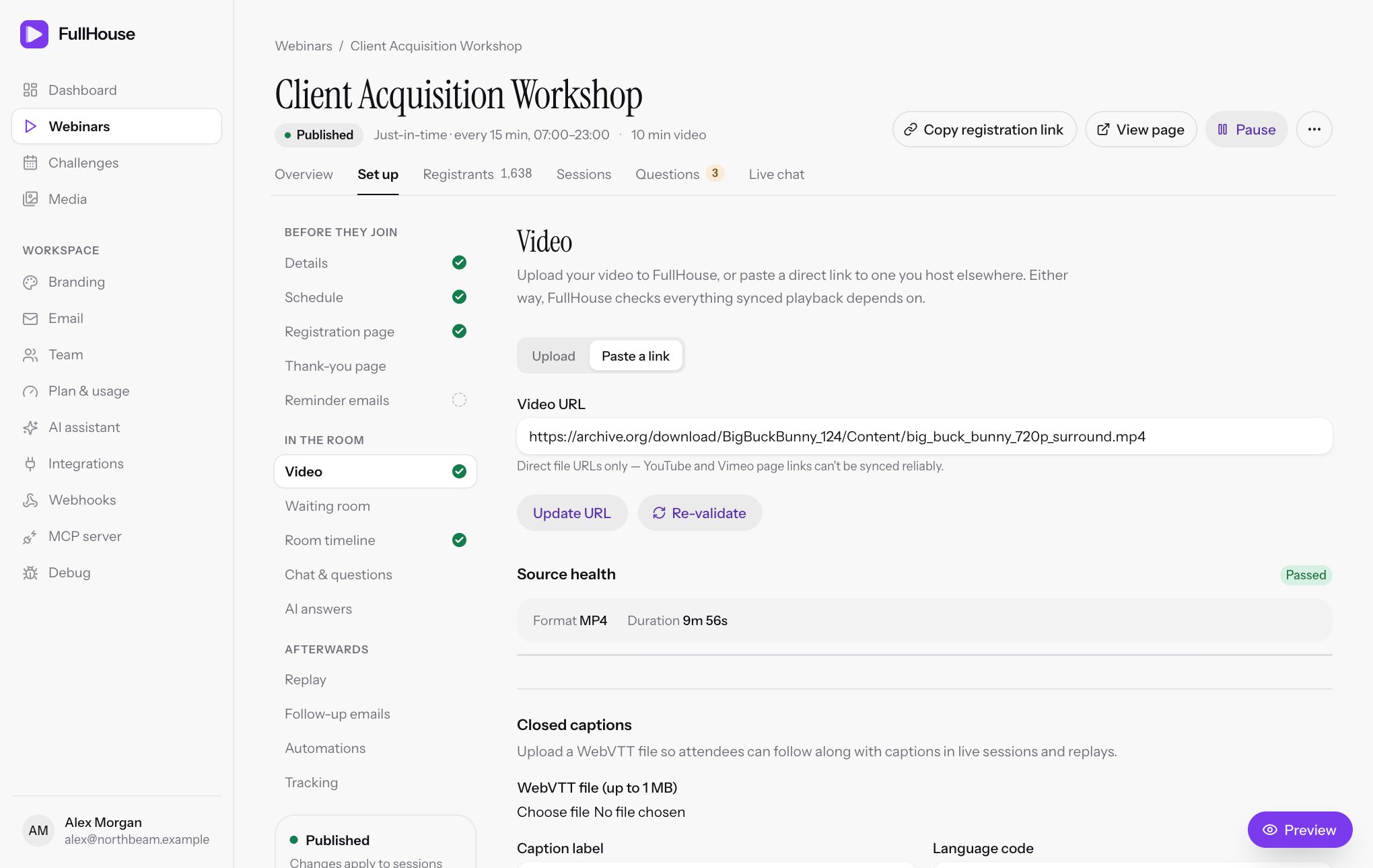
A webinar plays one video. You can’t publish until that video has passed its checks and FullHouse knows how long it is.
Choose where the video lives
Use the Where your video lives switch at the top of the step.
| Option | Use it when | What to know |
|---|---|---|
| Upload | You have the recording as a file. This is the right choice for most hosts. | The file is stored with FullHouse and counts against your plan’s storage. It also joins your media library, so other webinars can reuse it. |
| Paste a link | Your video already sits on a host that serves direct files, such as your own storage or CDN. | Nothing counts against your storage, but you depend on that host being fast, reliable and set up correctly. |
YouTube, Vimeo, Loom, Wistia and Dropbox share links do not work. Those are web pages with a player on them, not video files, and FullHouse can’t keep attendees in sync with them.
Upload a video
Accepted files: MP4, MOV, M4V and WebM, up to 20 GB each and within the storage your plan has left.
Best format: H.264 MP4. It plays in every current browser. HEVC and ProRes files often don’t.
Choose the file
Drop the file on the upload area, or click it to browse. FullHouse checks that it’s a real video and shows its size, length and resolution. To pick a different file, use the Choose a different file button (the X).
Start the upload
Choose Upload video, or Upload and replace if the webinar already has one. You see progress, speed and time left. Cancel stops the upload and frees the space.
Keep the tab open
The upload runs from your browser. Your browser warns you if you try to leave. After the last byte you see “Finishing up and checking the video…”.
Stay until the duration appears
When you see “Uploaded. Your webinar now plays this video, and it’s in Media for your other webinars.”, stay on the step for a moment. Your browser reads the video’s length and reports it. The Source health panel then shows the duration.
Uploads are checked automatically. There’s no validate button for a hosted video.
Reuse a video from Media
Under the upload area, choose Use a video from Media to pick a finished video you’ve already uploaded. Search by name, then click it. You’ll see “This webinar now plays the video from Media.” One file can serve any number of webinars, and it only counts against your storage once.
Replacing a video
Uploading or linking a new video replaces the one this webinar plays. A few things follow from that:
- The old file stays in Media and keeps using storage until you delete it there.
- Your captions stay attached to the webinar. If the new video is a different edit, upload new captions or remove the old ones.
- Timeline items don’t move. Check the Room timeline if the edit changed the running order. Items placed after the new video’s end never appear.
- If the length changed, only sessions that haven’t started yet get the new length, and their follow-up emails move with them. Running and past sessions keep their timing.
Don’t swap the video while a session is running. People in the room are playing the file you replaced, and anyone who joins or reloads gets the new one at the same clock position.
Upload problems
| What you see | What it means | What to do |
|---|---|---|
| Choose an MP4, MOV, M4V or WebM video file. | The file type isn’t accepted. | Export it as MP4. |
| That file is empty. | The file has no content. | Export it again. |
| (file name) isn’t a video file FullHouse can play. Export it as MP4 and try again. | The file’s contents aren’t a video, even if the name says so. | Export a real MP4 instead of renaming the file. |
| This browser can’t play this video | Probably HEVC or ProRes. Many attendees’ browsers won’t play it either. | Re-export as H.264 MP4 with HandBrake. Upload anyway is there if you’re sure. |
| Your (plan) plan’s (size) of video storage is full, or This video is (size), but you have (size) of storage left | The file doesn’t fit. | Delete files you no longer use in Media, or make this one smaller. |
| Videos can be up to 20.0 GB each. | The file is over the limit for a single video. | Make it smaller. |
| The upload arrived incomplete | Part of the file went missing on the way. | Upload it again. |
| That file isn’t a video FullHouse can play. Export it as MP4 (H.264) and upload it again. | The finished file failed the content check. | Re-export it. |
| The upload stopped. Check your connection and try again. | Your connection dropped. FullHouse retries each piece a few times before giving up. | Check your connection and start again. |
An upload you abandon is canceled after 24 hours and its space is freed. While an upload runs, its full size is reserved against your storage. A single upload session can’t run for more than 6 hours, so use a smaller file if your connection is slow.
Link to a video you host
Paste the URL
Switch to Paste a link and paste the direct address of the file into Video URL. It must be a public HTTPS address, up to 2,000 characters, with no username, password or # fragment. Choose Save URL. If you’re replacing a hosted upload the button reads Use this link instead, and if you’re changing a link it reads Update URL.
Run validation
Choose Run validation. FullHouse tests the address the way an attendee’s browser would use it and lists the results under Source health.
Keep the tab open for MP4 files
For an MP4, your browser then reads the video’s length and reports it. This takes a moment. If it can’t, you see “Couldn’t read the video in this browser”.
An address ending in .m3u8 is treated as HLS. Anything else is treated as a plain video file. Changing the URL resets the status to Not validated, so run validation again. Run Re-validate any time you change something on your video host.
Your host must answer directly, with no redirect. A link that redirects to the real file shows up as a failed Reachable check with an HTTP 301 or 302.
Read Source health
The panel shows Hosted on FullHouse for uploads, then Format, Duration and Size. The chip at the top sums up every check:
| Status | Meaning | Can you publish? |
|---|---|---|
| Not validated | Saved, but not checked yet. | No |
| Passed | All checks are clear. | Yes, once the duration is known |
| Passed with warnings | Something may cause trouble, but it isn’t fatal. Read the warning. | Yes, once the duration is known |
| Failed | At least one check failed. | No |
What each check means
| Check | When it fails or warns | What to do |
|---|---|---|
| HTTPS | The address isn’t public HTTPS. You’ll see “Use a public HTTPS URL without credentials or a fragment.” when saving. | Use an https:// link with no login details in it. |
| Direct file | Fails on YouTube, Vimeo, Loom, Wistia and Dropbox share links: “Use a direct MP4 or M3U8 media URL, rather than a hosting page.” | Upload the file to FullHouse, or get a direct file link from your host. |
| Reachable | Your host didn’t return a success code: “The video host responded with HTTP 403.” and similar. A host that blocks the check gives the message “The video could not be fetched safely. Use a reachable public HTTPS media URL.” | Open the link in a private browser window. It must play with no login, and it must answer both normal and HEAD requests. |
| Content type | Fails if the host says the address is a web page (text/html). Warns on an MP4 not labelled video/mp4, such as an uploaded MOV or WebM, and on HLS with an unusual type. |
A failure usually means the link goes to a page. A warning is often harmless, but test playback. |
| CORS | Your host doesn’t allow the attendee pages to fetch the file. A warning for MP4, because plain playback may still work. A failure for HLS, which can’t play without it. | On your host, allow requests from https://showtell.live, where attendee pages live, or from any origin (*). |
| Byte ranges | MP4 only. Fails if the host doesn’t honor Range requests: “The video host failed the bounded Range request. Late joins need reliable seeking.” | Turn on range requests on your host, or upload the file to FullHouse. Without them, nobody can join at the live position. |
| Duration | The length isn’t known yet. For an MP4, “Duration is detected in your browser. Keep this tab open a moment.” | Stay on the step. The check clears when your browser reports the length. |
| HLS manifest | HLS only. “This URL does not return a valid #EXTM3U playlist.” | Check the playlist address. |
| Variant playlist | HLS only. Warns if the first variant couldn’t be fetched to read the length. | Make sure the variant playlists are public. |
| VOD playlist | HLS only. Warns if the playlist has no end tag: “No end tag. Live playlists may not seek reliably.” | Use a finished, on-demand playlist, not a live stream. |
| Fast start | Uploads only. Warns if the file’s index is at the end: “Re-export with HandBrake and tick “Web Optimized” to fix it.“ | Re-export with Web Optimized. It works without this, but playback can take a moment longer to start. |
Duration limits
A video must run between 1 second and 24 hours. HLS length is added up from the playlist, so you see it as soon as validation finishes. MP4 length comes from your browser.
If you see “Couldn’t read the video in this browser”, playback may still work for attendees, but sessions can’t run without a duration. Check the URL is a direct video file, try another browser, and re-validate.
How attendees watch it
These rules are why the checks exist:
- Live sessions can’t be seeked or paused from the player. The video follows the session clock. Someone who joins late starts at the current position, which is why your file must support jumping to any point. See The live room.
- Replays use the normal browser video controls, so viewers can skip around. See The replay.
- Downloading is discouraged, not impossible. The player hides the download option and blocks the right-click menu, but a determined person can still save a video that plays in their browser.
Add captions
Captions are optional and appear once the webinar has a video. Attendees turn them on with the captions button, or the browser’s captions menu in a replay. They’re off until someone chooses them.
Get a WebVTT file
Captions must be a .vtt file, in UTF-8, up to 1 MB. It must start with WEBVTT and contain timed cues. An SRT file has to be converted first.
Fill in the form
Under Closed captions, choose the file under WebVTT file (up to 1 MB). Set Caption label, the name attendees see, default English, up to 60 characters. Set Language code, default en, such as en or en-GB, up to 35 characters.
Save
Choose Save captions. You’ll see “Current captions: English (en)”. To take them off, choose Remove captions. Uploading again replaces the current file.
A webinar has one caption track, so you can’t offer several languages side by side.
A valid file looks like this:
WEBVTT

00:00.000 --> 00:04.500
Welcome, everyone. Grab a notebook.

00:04.500 --> 00:09.000
We'll get started in a moment.| What you see | What to do |
|---|---|
| Upload a UTF-8 WebVTT file with a WEBVTT header and timed cues (at most 1 MiB). | Check the first line reads WEBVTT, the cue times look like the example, and the file is under the limit. |
| Upload a UTF-8 text file. | The file isn’t UTF-8. Save it again as UTF-8 in your text editor. |
| Use a valid language tag. | Use a code such as en, es or pt-BR, with no spaces. |
Limits at a glance
| Item | Limit |
|---|---|
| Uploaded video | MP4, MOV, M4V, WebM, up to 20 GB and within your plan’s remaining storage |
| Video URL | Public HTTPS, up to 2,000 characters, direct file or .m3u8 |
| Video length | 1 second to 24 hours |
| Validation runs | 20 per minute |
| Upload starts | 20 per minute |
| Captions | One WebVTT file per webinar, up to 1 MB |
Next, set up the waiting room and build the room timeline.