The Questions tab is your inbox for what attendees ask in the room. Questions are private: only the person who asked sees your answer. Answering them, even after the session, is often where a sale starts.
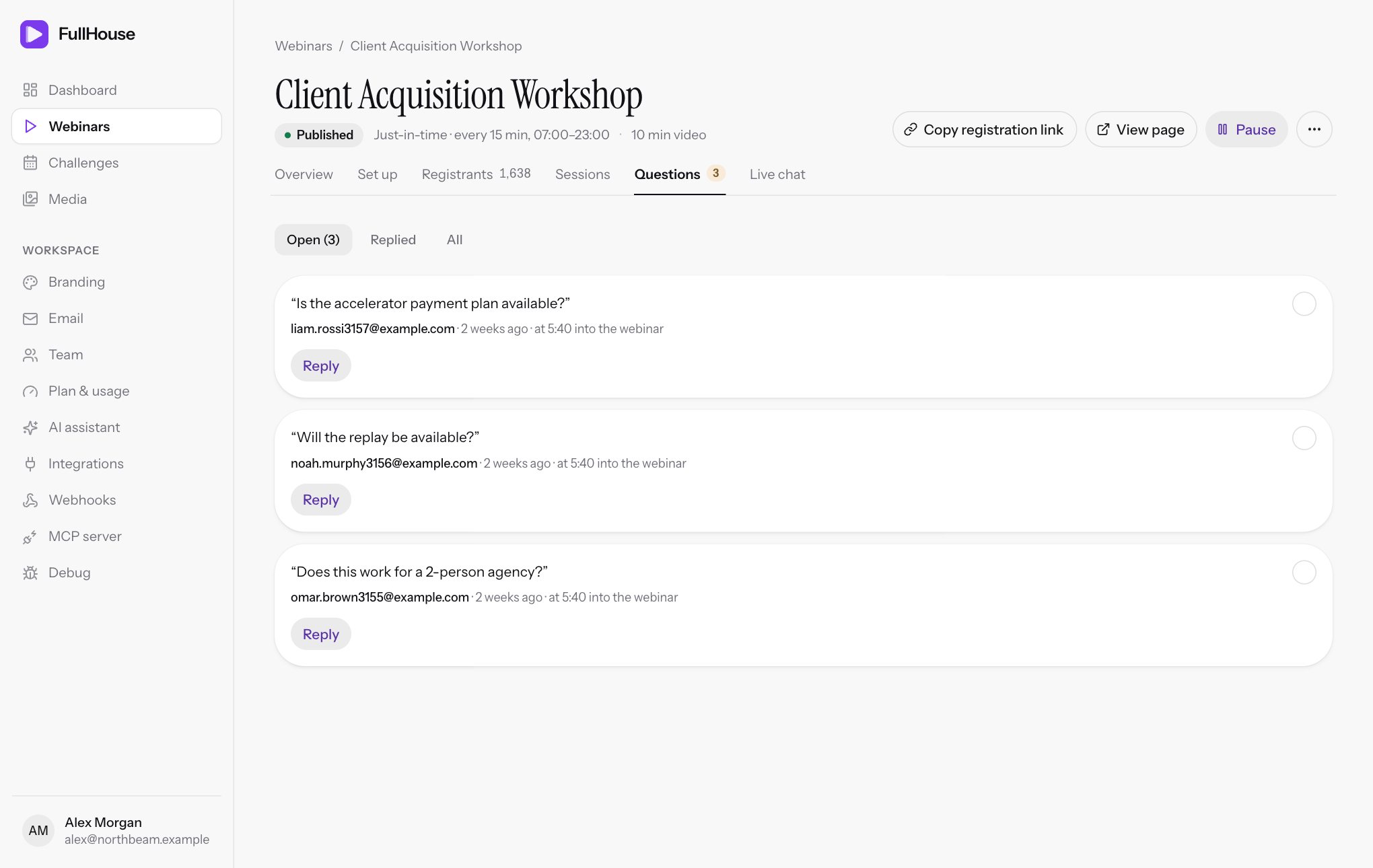
Open it from Webinars → your webinar → Questions. The badge on the tab shows how many are still open. The page doesn’t update by itself, so reload it to check for new questions.
Where questions come from
| Source | How it’s marked | Answered by AI? |
|---|---|---|
| The Q&A tab in the room, during the live session or the replay | Plain | Yes, if AI answers is on |
| The chat box in the room, when your chat is set to private | · via live chat |
No |
You can turn the Q&A tab on or off, and choose between private and shared chat, under Chat & questions. With shared chat, messages go to Live chat rather than here.
Attendees can write up to 2,000 characters, and send up to 5 questions a minute.
Find questions
| Tab | What’s in it |
|---|---|
| Open | No reply yet and not resolved. Shows the count, such as Open (3). |
| Replied | Anything with a reply, by you or by AI |
| All | Everything, including questions you resolved without replying |
Questions show the newest first, 25 to a page. With nothing to show you’ll see Inbox zero on Open, or Nothing here on the others.
Each card shows the question, who asked it, how long ago, and where they were in the video, such as at 12:34 into the webinar. Click their email to open their page, where you can see how much they watched and whether they clicked your offer before you answer.
Reply to a question
Click Reply
A box opens on the card.
Write your answer
Up to 4,000 characters. There’s no counter, so a reply over the limit shows a message under the box when you send it, and your text stays there.
Click Send reply
You’ll see Reply sent — the attendee sees it in their Q&A tab. The question moves out of Open and is marked resolved.
How the attendee gets your reply
Your reply appears in the Q&A tab of their room, under their question.
- If they’re in the room, it arrives within about 20 seconds, even mid-webinar.
- If they’ve left, they see it the next time they open their join or replay link.
- FullHouse doesn’t email the reply. If the session is over and the replay has closed, they may never see it. For anything important, email them directly at the address on the card.
A reply can’t be edited or deleted here once it’s sent, so read it through before you send.
Resolve a question
Click the circle at the top right of a card to mark it resolved without replying, for example a comment that doesn’t need an answer. It disappears from Open and you can find it under All. You’ll see Question updated.
Click the green tick to reopen it, which brings it back to Open. A question that already has a reply stays under Replied even if you reopen it.
AI answers
With AI answers on, FullHouse tries to answer each question from the Q&A tab by itself, using the context you’ve given it.
- An AI reply shows on the card with an AI badge, and works like one of yours: it’s marked resolved, moves to Replied, and appears in the attendee’s Q&A tab.
- Check them under Replied. AI replies leave Open, so you won’t see them unless you look.
- You can’t replace an AI reply from this tab, because the Reply button only shows on questions without a reply. If an answer is wrong, email the attendee directly, and improve your AI context for next time.
- If you reply first, AI won’t answer that question. A question you’ve resolved isn’t answered either.
- AI doesn’t answer questions on canceled sessions, or chat messages marked
via live chat.
If a question stays in Open with AI on, the assistant didn’t produce an answer, so reply yourself. See AI answers for how it decides and for usage limits.
During a session
Live questions show up on your dashboard as a count on the chat button beside each session that’s live. That count only includes questions from that session’s Q&A tab. It leaves out chat messages, while the badge on this tab includes them and covers all sessions.
To be notified about each question elsewhere, use the question.asked webhook.
Common problems
| What you see | What to do |
|---|---|
Use 1 to 4000 characters. under the reply box |
Your reply is empty or too long. The box keeps your text, so shorten it and send it again, or email them. |
| An attendee says they didn’t get your reply | Ask them to open their join link and look in the Q&A tab. Replies aren’t emailed. |
| Questions you expected aren’t under Open | Check Replied, as AI may have answered them. Check All for resolved ones. |
| No questions at all | Check that Q&A tab is on under Chat & questions. |