Live chat is the shared conversation in the room, where attendees can see each other’s messages. The Live chat tab is your seat in that conversation. Use it to welcome people, respond in the moment and keep things on topic.
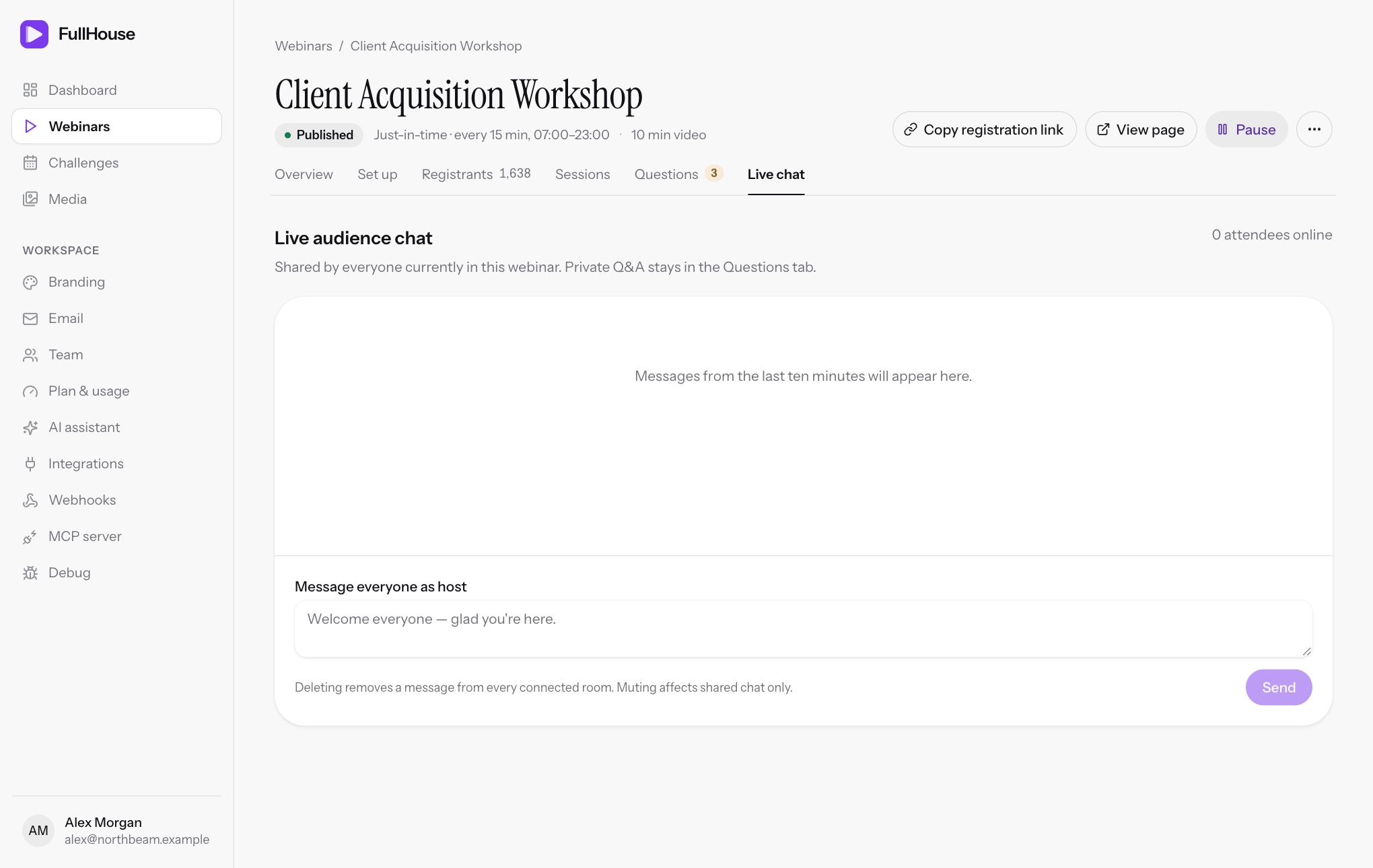
Open it from Webinars → your webinar → Live chat. It’s for shared chat only. Private questions stay under Questions.
Turn live chat on
The tab is always there, but it only works when your webinar’s chat is set to live. Otherwise you’ll see Live chat is off. Enable it in room settings to let attendees talk together., and the message box is disabled.
Change this under Set up → Chat & questions. See Chat & questions.
What you see
| Item | What it shows |
|---|---|
| N attendees online | Attendees connected to the chat now. Each person counts once however many tabs they have open, and you aren’t counted. |
| Reconnecting… | Your connection dropped and FullHouse is trying again. See If your connection drops. |
| The message feed | The name, the time and the message, with · Host beside hosts and · Muted beside muted attendees. It updates by itself and follows new messages unless you’ve scrolled up. |
The name for an attendee is their first name, or Guest if they didn’t give one. Host messages show the name on your account.
Who’s in the chat
Chat is shared across the whole webinar, not one session. If two sessions overlap, as can happen with just-in-time sessions, people in both see the same conversation, and they may be at different points in the video. Bear this in mind before you mention what’s on screen.
Attendees can read and post during the live session. The chat isn’t open to them in the waiting room or once their session has ended, and it isn’t on the replay, which can play your simulated chat instead. So N attendees online only counts people watching a session right now.
How long messages last
The feed loads messages from the last 10 minutes, up to the latest 100, when you open the page, and new ones add on while it’s open. Attendees joining also get the last 10 minutes. There’s no chat history or export beyond that.
On an empty feed you’ll see Messages from the last ten minutes will appear here.
Post as host
Type under Message everyone as host and click Send. Your message appears for everyone connected, marked as coming from a host, in up to 2,000 characters.
You can post whether or not a session is running, but only people connected at that moment, or who join within 10 minutes, will see it.
Delete a message
Click Delete beside any message, including your own. It disappears from every connected room straight away, with no confirmation and no undo.
Mute an attendee
Click Mute beside one of their messages. Their messages stay visible but they can’t post any more, and · Muted appears beside their name for you.
- If they try to post, they see
The host has muted your shared chat. Private Q&A remains available. - Other people aren’t told.
- Muting only affects shared chat. They can still watch and ask private questions.
- It lasts across all sessions of this webinar, until you click Unmute.
- It applies to that registration. If the same person registers again for another session with the same email, that’s a new registration and they aren’t muted.
- Existing messages stay up, so delete any you want gone.
If your connection drops
The N attendees online label changes to Reconnecting… with a spinner. FullHouse keeps trying, starting after about a second and waiting longer each time, up to about 30 seconds between tries.
When it reconnects, the feed refills with the last 10 minutes. Whatever you were typing stays in the box. If a message fails to send, your text stays there too, and you can send it again without it posting twice.
Attendees reconnect in the same way, and nothing they’ve seen is lost. Their video isn’t affected, as the chat runs separately.
Common problems
| What you see | What to do |
|---|---|
Live chat is off… and the box is disabled |
Set the chat to live under Chat & questions. The link in the message opens Set up, so go to that step from there. |
Enable live chat in the room settings first. |
The same. The chat was switched off while you had the page open. |
Enter 1–2000 characters. |
Your message is empty or too long. |
Too many attempts. Please retry later. |
You’ve made more than 60 posts, deletes or mutes in a minute. Wait a moment. |
That change could not be saved. Please try again. |
A delete or mute didn’t go through. Check your connection and try again. |
| Reconnecting… doesn’t clear | Check your internet connection, then reload the page. |
| An attendee can’t post | They may be muted, or their session may not be live right now. Attendees can send up to 20 messages a minute. |
| You can’t see a message from earlier | Messages older than 10 minutes drop out when the page reloads. |