Publishing opens your registration page and lets people sign up. Before that, the page is only visible to you and your team. Everything happens under Webinars → your webinar → Set up → Go live, the card at the bottom of the steps list. On a smaller screen that card is hidden, so use the Publish button at the top of the webinar.
Run through the launch checklist as well if this is your first webinar.
Preview before you publish
You have three ways to check your work.
| Tool | Where | What it’s for |
|---|---|---|
| Live preview | Beside the form on wide screens, or the Preview button on smaller ones | See changes as you type, before saving, on phone or desktop |
| What they receive | The same spot, on the two email steps | Read an email with sample details filled in |
| Preview (View page once published) | Top of every webinar page | Open your real registration page in a new tab |
Previews beside the form appear on these steps: Details, Schedule, Registration page, Thank-you page, Reminder emails, Video, Waiting room, Chat & questions, Replay and Follow-up emails. Room previews show a still of your video at the moment your first offer is on screen, or 40% of the way through if you don’t have an offer. They use your unsaved edits, and nothing changes for attendees until you save.
The Preview button shows a banner reading Preview: this is how visitors see your registration page. Visits from it aren’t counted and your tracking scripts don’t run on it. It works while the webinar is a draft or paused, but only when you’re signed in.
Check the list
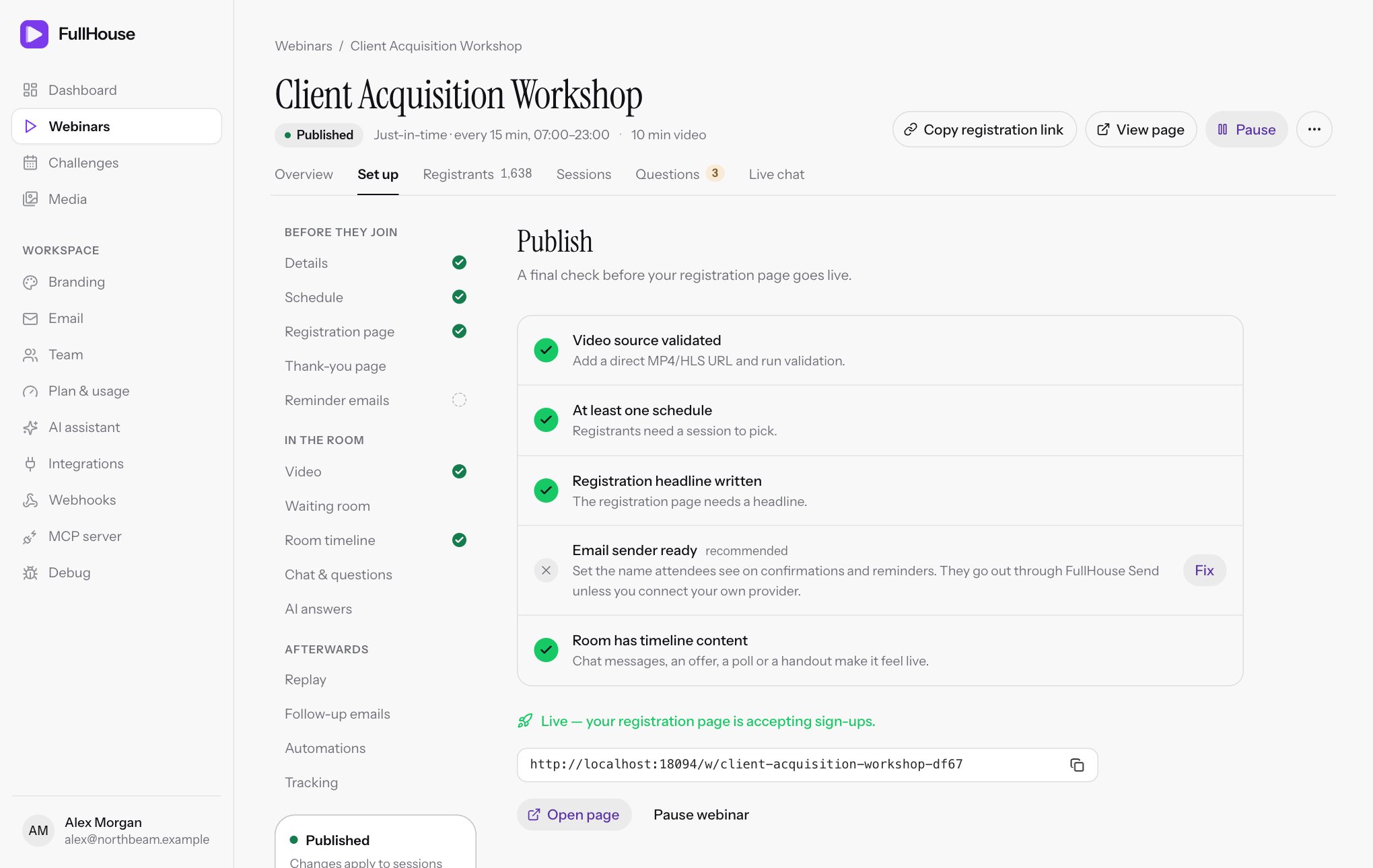
The Publish step lists five checks. The first two must pass. The other three are marked recommended, and you can publish without them. Each check that isn’t done has a Fix button that takes you to the right step.
| Check | Required? | Passes when | Text shown |
|---|---|---|---|
| Video source validated | Yes | Your video passed validation, or passed with warnings, and its length is known. | Add a direct MP4/HLS URL and run validation. |
| At least one schedule | Yes | Your schedule offers at least one session in the future. | Registrants need a session to pick. |
| Registration headline written | Recommended | The registration page has a headline. | The registration page needs a headline. |
| Email sender ready | Recommended | You’ve set the name attendees see under Email and your workspace can send. | Set the name attendees see on confirmations and reminders. They go out through FullHouse Send unless you connect your own provider. |
| Room has timeline content | Recommended | At least one chat message, offer, poll or handout on the timeline is active. | Chat messages, an offer, a poll or a handout make it feel live. |
The Publish webinar button is disabled until both required checks pass.
Publish
Open Go live
Check that the two required items have ticks.
Click Publish webinar
The step changes to Live — your registration page is accepting sign-ups. and the status becomes Published.
Copy your link
Use the link under that message, or Copy registration link at the top of any webinar page. Open page opens it in a new tab.
If Publish is blocked
If something’s missing when you choose Publish in the header, on any tab of the webinar, a dialog titled Not ready to publish yet lists everything still to do, with a button that takes you there. Close dismisses it. The Go live step shows the same message inline.
| Message | Button |
|---|---|
| “Add a video source that passes validation (with a known duration) before publishing.” | Go to Video |
| “Add at least one schedule before publishing.” | Go to Schedule |
| “Publish this day from its challenge so registration stays connected to the challenge hub.” | Open the challenge |
What publishing does
- Your registration page and any embedded forms start accepting sign-ups.
- The webinar becomes available to Pinball for use on its pages.
- Its upcoming open sessions appear under Coming up in the room on your dashboard.
Publishing doesn’t email anyone. Nothing is sent until someone registers.
If publishing is blocked
| Message | What to do |
|---|---|
Add a video source that passes validation (with a known duration) before publishing. |
Open Video and fix the failed checks. |
Add at least one schedule before publishing. |
Open Schedule. Check that a rule is active and that it offers a time in the future. A rule with only past dates doesn’t count. |
Publish this day from its challenge so registration stays connected to the challenge hub. |
This webinar is a challenge day. Publish from the challenge. |
Your public links
Attendee pages live on showtell.live, separate from app.meetfullhouse.com where you work.
| Link | Address | Who it’s for |
|---|---|---|
| Registration page | https://showtell.live/w/your-address |
Share this one everywhere |
| Embedded form | https://showtell.live/w/your-address/embed |
Use the embed code rather than this address |
| Personal join link | https://showtell.live/w/your-address/join/… |
One for each registrant, sent by email |
| Personal replay link | https://showtell.live/w/your-address/replay/… |
One for each registrant, sent by email |
your-address is the address from Details. New webinars get one made from the name, with a few random characters at the end.
Public pages are marked so that search engines don’t list them, so people reach them through the links you share.
Pause a webinar
Pausing stops new sign-ups without touching anyone who’s already registered. Click Pause at the top of the webinar page, or Pause webinar on Go live. The status changes to Paused. There’s no confirmation step, and you can publish again at any time.
| While paused | What happens |
|---|---|
| Registration page and embedded forms | Visitors see This page isn’t available, or Sign-ups aren’t open right now in an embedded form. You can still preview it when signed in. |
| New sign-ups from Pinball | Not accepted. Pinball no longer lists the webinar. |
| Sessions people have already booked | Still run as scheduled |
| Join links and replay links | Still work |
| Reminders and follow-ups | Still send |
| Automations | Still fire |
| Switching to another session time | Not available |
To stop a booked session as well, cancel it. That closes its room and stops its remaining emails.
Edit after going live
You can keep editing a published webinar. Nothing is locked, apart from a poll that already has responses, which keeps its question and answer labels. Save each step as you go.
The card in the steps list says Changes apply to sessions that start after you save. In practice, most changes reach people sooner than that, because pages read your settings when they load.
| You change | Who it reaches |
|---|---|
| Registration page, thank-you page, waiting room text, timeline, room settings, replay settings, tracking | Anyone who opens or reloads the page after you save, even during a running session |
| The video | Anyone who loads the room after you save, including people joining a running session |
| The video’s length | Future sessions and their follow-up times. Sessions already started keep their end time. |
| Email text | Every email not yet sent |
| Turning an email on | People who register from now on. See Follow-up emails. |
| Schedule | New registrations. Sessions people have already booked stay. See Schedule. |
| Automations | Things that happen after you save |
Duplicate a webinar
Click ⋯ → Duplicate at the top of a webinar page to make another one with the same setup, as a starting point or to test a change. You’re taken to the new webinar’s Set up.
| Copied | Not copied |
|---|---|
| All settings, including tracking and the AI context | Registrants, stats, questions and chat |
| The video | Automations |
| Timeline items | The public address. The copy gets a new one. |
| Emails | Past sessions |
| Schedule rules and future specific dates |
The copy is named after the original with (copy) added, and starts as a Draft. Publish it when you’re ready.
Delete a webinar
Click ⋯ → Delete… and confirm with Delete webinar. This removes the webinar and all of its registrants, sessions and analytics. Join links stop working immediately. It can’t be undone, so export your data first.
A video you uploaded to FullHouse stays in your media library for other webinars until you delete it there.
A challenge day can’t be deleted this way. To delete everything, delete the challenge.