The room timeline decides what happens in the room while your video plays: when the offer appears, when a poll opens, when a handout unlocks, and what the chat says. Open it under Webinars → your webinar → Set up → Room timeline.
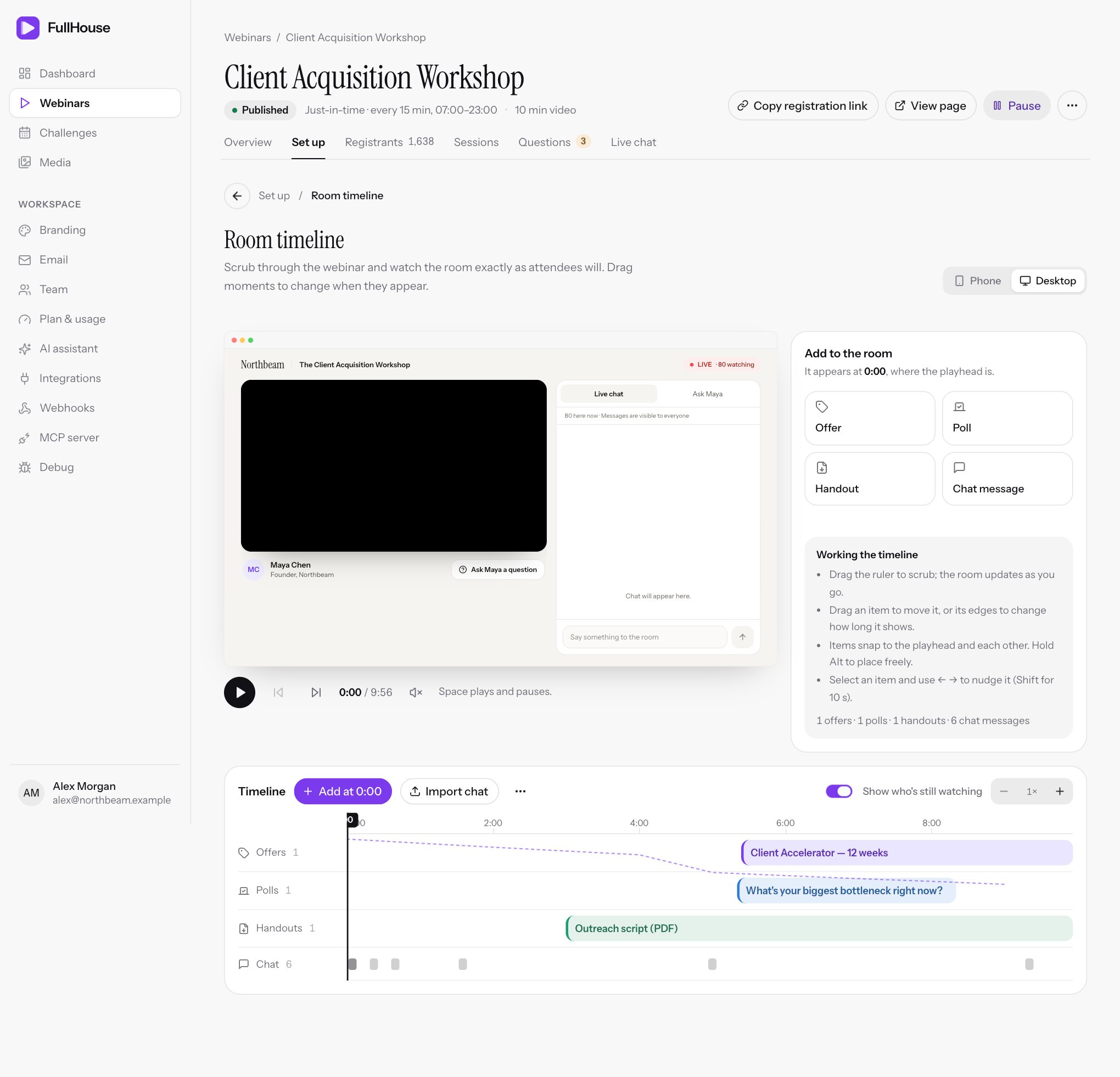
Everything is placed against the video’s clock, not the time of day. An offer at 45:00 appears 45 minutes into every session and every replay. Add your video first, so the timeline knows how long it is and the preview has something to play.
The step has three parts: a live preview of the room, an inspector for the selected item, and the tracks underneath. With nothing selected, the inspector shows a short Working the timeline guide and how many offers, polls, handouts and chat messages you’ve placed.
The four item types
| Type | What it does in the room | How long it shows | Details |
|---|---|---|---|
| Offer | Appears at the top of the side panel on a computer and as a sheet that rises on a phone, with a buy button. | Until Disappears, or to the end | Offers |
| Poll | Appears above the chat with answers to choose from, then shows results. | Until Disappears, or to the end. New polls run 3 minutes. | Polls |
| Handout | Unlocks a link in the Resources tab. | Always to the end. It can’t disappear early. | Below |
| Chat message | Posts a scheduled message in the chat. | It stays in the chat scroll once posted. | Scheduled chat |
Only one offer and one poll show at a time. If two overlap, attendees see the one that starts first until it ends, so an offer set to run to the end hides any later offer. Give the earlier one a Disappears time.
Add an item
Move the playhead
Drag along the ruler at the top of the tracks, or click a track, to reach the moment you want.
Choose the type
Choose Add at (time) above the tracks, or a card under Add to the room in the inspector when nothing is selected.
Fill it in
The inspector opens with a draft, shown with a dashed outline on its track. The preview updates as you type.
Save it
Choose Add offer, Add poll, Add handout or Add chat message at the bottom of the inspector. Until then it’s only in your browser.
Move items and change their length
Dragging saves on its own when you let go. A dark label shows the new time while you drag.
| Do this | To |
|---|---|
| Drag the middle of an item | Move it. Offers and polls keep their length. |
| Drag an item’s left edge | Change when it appears. |
| Drag an item’s right edge (offers and polls) | Change when it disappears. Drag it to the very end to set “until the end”. |
| Drag near the playhead, the start or end of the video, or another item’s edge | Snap to it. Chat messages aren’t snap points. |
| Hold Alt while dragging | Place it freely, with no snapping. |
An offer or poll must show for at least 5 seconds when you resize it on the track or type a time in the inspector.
Each track row is labelled with its type and a count. Chat messages appear as small ticks, darker for hosts. Items with Show in the room off look hatched, and their label starts with “Hidden”.
Edit an item in the inspector
Click an item to select it. The playhead jumps to the item’s start and the inspector shows its fields.
All types share these timing fields:
| Field | What it does | Limits |
|---|---|---|
| Appears (Posts at for chat) | When the item shows. Type h:mm:ss, m:ss, or a number of seconds. |
From 0 to the video’s length |
| Disappears (offers and polls) | When it goes away. It shows At the end until you click it, which sets an end 3 minutes after the start for a poll or 10 minutes for an offer. The X returns it to At the end. | At least 5 seconds after Appears, up to the video’s length |
| Show in the room (not chat) | Off hides the item from attendees without deleting it. | On by default |
The footer tells you where you stand:
| Status | Meaning |
|---|---|
| Unsaved changes · shown in the preview | You see your edit, attendees don’t. Choose Save. |
| Saving… | Your change is on its way. |
| Saved | What you see is what’s live. |
If you drag an item with unsaved field edits, the new time saves but your field edits stay unsaved.
To close the inspector, use the X. Closing it or selecting another item drops unsaved field edits with no warning, so save first.
Duplicate or delete
The More actions menu (three dots) has two commands:
- Duplicate at playhead copies the item into a new draft at the playhead. Choose Add to save it. A copy keeps the original’s length. If it would run past the end of the video, it moves back so it still fits.
- Delete removes it straight away.
The Delete button in the footer asks first: it changes to Confirm delete for 3 seconds. There’s no undo. Deleting a poll also deletes its answers and removes it from your reports.
See how an item performed
Once people have seen an item, the inspector shows a Last 30 days line, such as “1,240 people saw it and 86 clicked (6.9%).” Polls show how many people answered, and handouts how many opened them. Scheduled chat messages have no stats.
Add a handout
Handouts are links to something attendees can take away, such as a workbook or a script. They show in a Resources tab that appears when the first handout unlocks, with a dot to mark anything new.
| Field | What it does | Limits |
|---|---|---|
| Title | The name attendees see. | Required, up to 160 characters |
| Description | One line under the title. | Optional, up to 500 characters |
| Link | What opens in a new tab when they click. | Required, http:// or https://, up to 1,000 characters |
Choose Choose a file from Media to use a file from your media library, or upload a new one from that window: PDF, ZIP, DOCX, XLSX, PPTX, EPUB, CSV, TXT, MP3 or M4A, up to 1 GB.
Once unlocked, a handout stays for the rest of the session. All your handouts also appear under From the session on the page people see when it ends.
Use the preview
The preview is the real room frame, drawn at the playhead’s position, using your actual video. Nothing you do in it is tracked or sent anywhere. The item you’ve selected gets a colored ring.
| Control | What it does |
|---|---|
| Phone / Desktop | Switches the preview layout. Check both, because offers behave differently on each. |
| Play / Pause | Plays from the playhead. The video drives the timeline while it plays. |
| Previous moment / Next moment | Jumps between offers, polls and handouts. Chat messages are skipped. |
| Mute | The preview starts muted. Unmute preview turns the sound on. |
If the video can’t load, the line beside the controls says “The video could not load here, so the playhead runs on a clock.” You can still check your timing. With no video, the preview says “Add a video to see it here”.
The attendee counter in the preview uses the same formula as the real room, including the “here now” line in shared chat. See Chat & questions.
Controls and keyboard shortcuts
| Key or control | Where | What it does |
|---|---|---|
| Space | Anywhere on the step, unless you’re in a field, on a button, or on the ruler | Play or pause |
| ← / → | Ruler focused | Move the playhead 1 second |
| Shift + ← / → | Ruler focused | Move the playhead 10 seconds |
| ← / → | Item focused | Nudge the item 1 second, saved at once |
| Shift + ← / → | Item focused | Nudge the item 10 seconds, saved at once |
| Alt + drag | Item | Move without snapping |
| Zoom − / + | Above the tracks | Zoom from 1× to 16×. The tracks scroll sideways and follow the playhead while playing. |
Work with scheduled chat
Above the tracks, Import chat adds messages from a CSV or text file. The More chat actions menu has Export chat as CSV and Clear all chat, which asks you to confirm and can’t be undone.
For the file format, see CSV formats. For writing and managing messages, see Scheduled chat.
See where people drop off
After real people have watched, a Show who’s still watching switch appears above the tracks. It draws a dashed line over them showing how many viewers were present at each minute of the video, counted across all your sessions.
Use it to place your offer before the drop, or to add a poll where attention fades. It counts live viewers only, not replays.
When changes reach attendees
Saved changes apply to every session, including sessions that have already been scheduled, with no republishing.
- Offers, polls and handouts load when an attendee opens the room. Someone already watching won’t see your change until they reload.
- Scheduled chat loads in chunks as the session goes on, so a change can reach people in the room later in the session.
Avoid editing the timeline during a session you care about, and test changes with your own registration. See Go live.
Common problems
| What you see | What it means | What to do |
|---|---|---|
| Use 1 to 160 characters. (or another number) | A required field is empty or too long. | Fill in the field marked in red. |
| Enter an HTTP or HTTPS URL. | The Link isn’t a full web address. | Include https://. |
| Enter a valid HTTPS URL. | An offer’s Image address isn’t HTTPS. | Use an https:// image, or pick one from Media. |
| End must be after the start. | Disappears is at or before Appears. | Change one of the times. |
| Provide between two and six answer options. | A poll has too few or too many answers. | Use 2 to 6. |
| This poll already has responses. Keep its question and answer labels unchanged, or add a new poll. | You edited an answered poll. | See Polls. |
| An item never shows in the room | Show in the room is off, it’s placed after the video ends, or another offer or poll overlaps it. | Check all three on the track. |
Limits
| Item | Limit |
|---|---|
| Item timing | 0 to 24 hours, and within the video’s length when edited on this step |
| Shortest offer or poll on the track | 5 seconds |
| Zoom | 1× to 16× |