Reminder emails are what land in someone’s inbox between signing up and the session. They’re the biggest lever you have on show-up. Open them from Webinars → your webinar → Set up → Reminder emails.
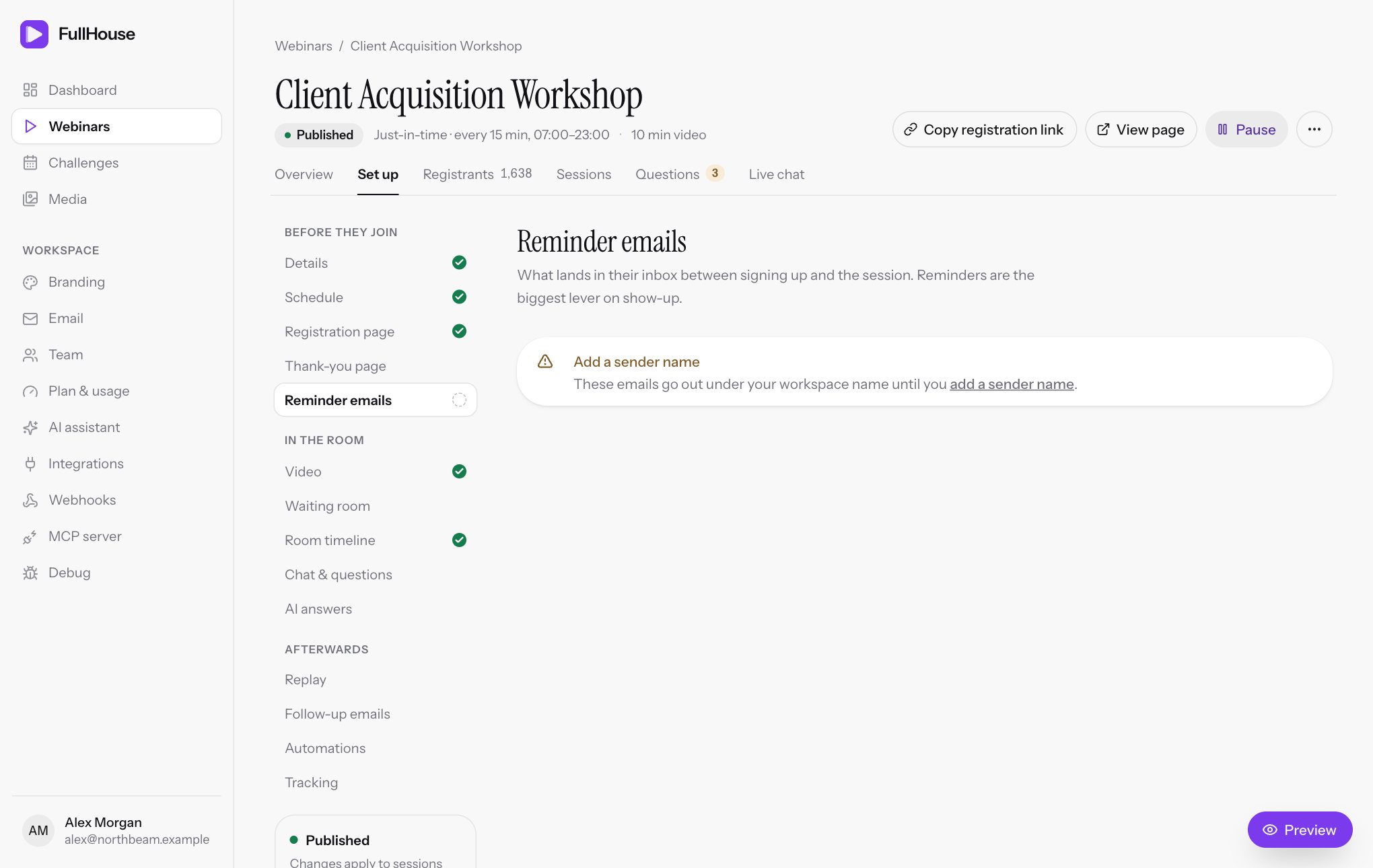
Every webinar comes with four of these already written and switched on, so you don’t have to change anything to get started. You’ll want to at least check the wording and send yourself a test.
The Follow-up emails step uses the same editor, so everything on this page about editing applies there too.
When each email goes out
| Step | Default subject | Sent | |
|---|---|---|---|
| Registration confirmation | Reminder emails | You’re in — {{webinar_title}} |
Straight after they register |
| 24-hour reminder | Reminder emails | Tomorrow: {{webinar_title}} |
24 hours before the session starts |
| 1-hour reminder | Reminder emails | Starting in 1 hour: {{webinar_title}} |
1 hour before the session starts |
| 15-minute reminder | Reminder emails | We’re starting in 15 minutes | 15 minutes before the session starts |
| Attended follow-up | Follow-up emails | Thanks for joining {{webinar_title}} |
1 hour after the session ends, to people who watched |
| Missed follow-up | Follow-up emails | Sorry we missed you, {{first_name}} |
1 hour after the session ends, to people who didn’t join |
| Replay available | Follow-up emails | The replay of {{webinar_title}} is live |
3 hours after the session ends, or when the replay opens if that’s later, to people who missed it or watched less than 90%. Not sent when replay is off |
You can’t set these times yourself. You can only switch each email on or off, and edit its words.
Reminders that get skipped
A reminder only goes out if its time is still ahead when someone registers. FullHouse doesn’t send late reminders.
| They register | Confirmation | 24-hour | 1-hour | 15-minute |
|---|---|---|---|---|
| 3 days before | Yes | Yes | Yes | Yes |
| 5 hours before | Yes | No | Yes | Yes |
| 30 minutes before | Yes | No | No | Yes |
| 10 minutes before | Yes | No | No | No |
| Instant watch | Yes | No | No | No |
So with just-in-time sessions, most people get only the confirmation and possibly the 15-minute reminder. Make sure the confirmation does the heavy lifting. Your follow-ups matter more on these schedules too.
The default wording
Every new webinar starts with these messages. The subjects are in the table above.
Hi {{first_name}},

You're registered for {{webinar_title}}.

Your session: {{session_date}} at {{session_time}} ({{timezone}})

This is your personal link — it won't work for anyone else:
{{join_link}}

Add it to your calendar so you don't miss it:
{{calendar_link}}

See you there!
Hi {{first_name}},
A quick reminder that {{webinar_title}} starts tomorrow — {{session_date}} at {{session_time}} ({{timezone}}).
Your personal link:
{{join_link}}

See you there!Hi {{first_name}},
{{webinar_title}} starts in one hour, at {{session_time}} ({{timezone}}).
Grab a drink, find a quiet spot, and join here:
{{join_link}}Hi {{first_name}},
{{webinar_title}} starts in 15 minutes.
Join now so you don't miss the opening:
{{join_link}}To put an edited email back to its default, paste the wording above. There’s no reset button.
Set up your sender first
One of two warnings can appear at the top of this step:
| Warning | What it means | What to do |
|---|---|---|
| Email isn’t set up | “Nothing is sent until you finish your email settings.” FullHouse can’t send at all yet. | Open Email settings and finish them. |
| Add a sender name | “These emails go out under your workspace name until you add a sender name.” Sending works, and Send a test to me works too. | Add a From name in Email settings. It’s what attendees see in their inbox. |
Edit an email
Pick the email
The step lists the emails in the order they go out, each with its timing and whether it’s On or Off. Click one to edit it.
Write it
Change the Subject and Message, and watch the result under What they receive.
Save it
Choose Save email. Switching to another email without saving drops your edits, so save each one as you go.
Test it
Choose Send a test to me.
| Field | Limit | What it does |
|---|---|---|
| Send this email | Switches this email on or off. The line under it says when it goes out. | |
| Subject | 200 characters, required | The subject line. Merge tags work here. |
| Message | 10,000 characters, required | The body, in plain text. Merge tags work here. |
Format the message
The message is plain text, and FullHouse does the formatting. You can’t use HTML: any tags you type show up as text.
| You type | They see |
|---|---|
| Text with a blank line after it | A new paragraph |
| A single line break | A line break within the paragraph |
| A web address inside a sentence or next to other text | A clickable link in your brand colour |
| A web address alone on its line | A button, with a label that depends on where the link goes |
The hint on the step says “Plain text. A link on its own line becomes a button.” The default emails already work this way, so each one shows a button with the line above it as its own paragraph. A link inside a sentence stays a plain link.
| Link | Button |
|---|---|
{{join_link}} on a webinar |
Join the webinar |
{{replay_link}} on a webinar |
Watch the replay |
{{calendar_link}} |
Add to calendar |
{{join_link}} or {{replay_link}} on a challenge, which go to the hub |
Open your challenge |
{{unsubscribe_link}} |
Unsubscribe |
| Any other link | Open your link |
You can’t change the button wording, so write the sentence above it with that in mind. For example:
Your personal link:
{{join_link}}
See you there!The live preview uses these same rules, so check it there.
Insert a merge tag
Merge tags fill in details for each person, such as their name or personal link. Under Insert a merge tag, click a tag to add it to the end of your message, then move it where you need it. To use one in the subject, type it by hand.
Hi {{first_name}},

{{webinar_title}} starts at {{session_time}} ({{timezone}}).
The most important one is {{join_link}}. Without it, people can’t get into the room from your email, because the link is personal to them.
See Merge tags for the full list and exact formats.
If someone has no first name, because the field is optional or hidden, {{first_name}} comes out as “there”, so “Hi {{first_name}},” reads “Hi there,”. This also applies in subjects, so the default Missed follow-up subject reads “Sorry we missed you, there”. Reword that one if you’ve made first name optional or hidden.
Send yourself a test
Send a test to me sends the saved version of the email to your account email address, even if the email is switched off.
The button is disabled in two situations: when the email has unsaved changes (you’ll see “Save first to send a test”), and when your workspace can’t send at all (Email isn’t set up). It shows a spinner while sending. Once it’s sent, you’ll see “Test email sent to your account email.”
A test isn’t identical to the real thing:
| In a test | In the real email |
|---|---|
| The subject starts with “[Test]” | No prefix |
{{first_name}} is your full account name |
The registrant’s first name |
{{last_name}} is blank |
The registrant’s last name |
{{email}} is your account email |
The registrant’s email |
{{presenter_name}} may show a placeholder if you haven’t set a presenter |
Blank if you haven’t set a presenter |
{{session_date}} and {{session_time}} are this time tomorrow, in the webinar’s timezone |
The real session, in the registrant’s timezone |
{{timezone}} is the webinar’s timezone (UTC unless you’ve set a Fixed timezone) |
The registrant’s timezone |
{{join_link}}, {{replay_link}} and {{calendar_link}} all open your registration page, with the same button labels |
Their own join link, replay link and calendar file |
| A test for a challenge day shows Join the webinar | The real email says Open your challenge |
No unsubscribe footer, and {{unsubscribe_link}} isn’t a working link |
A working unsubscribe link and footer |
So the links in a test don’t show the personal experience, and on a draft webinar the registration page they open won’t load for anyone who isn’t signed in. For the true result, register from the preview using your own address.
You can send up to five tests a minute. After that you’ll see “Too many attempts. Please retry later.” On FullHouse Send, each test counts towards your daily limit.
If a test can’t be sent, for example because you’ve reached your daily limit, the reason shows directly under the button. Check Email settings and Plan and usage.
What every email includes
Every email is wrapped in the same simple layout, with a bar in your brand colour across the top. If you haven’t set one, a default purple is used.
The footer shows your legal footer, or your workspace name if you haven’t set one, followed by an Unsubscribe link. You don’t need to add one yourself, though you can include {{unsubscribe_link}} in the message as well.
Clicking unsubscribe opens a page asking them to confirm. Once they do, that registrant gets no more emails for this registration, and the page tells them “Your join link still works if you change your mind.” See Emails and unsubscribing.
The sender name, reply-to address and sending provider are set in Email settings. A switched-off email is faded in the preview, with “This email is off, so nobody receives it.” The preview’s From line shows your workspace name, so check a real email to see your sender name.
What happens when you edit an email
Emails are filled in when they’re sent, not when someone registers.
| You do this | What happens |
|---|---|
| Edit the wording | Everyone who hasn’t received that email yet gets the new version, including people already registered. |
| Switch an email off | It stops going out, including to people already registered. |
| Switch an email on | Only people who register from now on get it. People already registered don’t, because nothing was lined up for them. |
| Someone moves to another session | Their pending emails are canceled and a new set is lined up, including a new confirmation. |
| You cancel a session | Pending emails for everyone in it are canceled. |
| You pause the webinar | Emails to people already registered keep going out. |
| Someone unsubscribes, or you unsubscribe them | Their pending emails are canceled. |
| You delete a registrant | Their pending emails are canceled. |
If emails aren’t arriving
Check these in order:
- Is the email on? Look for On next to it in the list.
- Was it on when they registered? Switching on later doesn’t apply to existing registrants.
- Was there still time? See Reminders that get skipped.
- Did they unsubscribe? Look them up on the Registrants tab. Their page shows whether they’ve unsubscribed, and lists each email and its status.
- Did it fail? Workspace → Debug lists failed emails with the reason and a way to retry them. FullHouse tries a failed send a few more times by itself before marking it failed.
- Did you hit your daily limit? On FullHouse Send you’ll see “Daily FullHouse Send limit reached”. The limit depends on your plan and resets at midnight UTC. Emails over the limit fail rather than wait, so retry them from Debug the next day, or connect your own email provider for unlimited sending. See Plan and usage.
Messages you may see
| Message | What to do |
|---|---|
| “Use 1 to 200 characters.” | The subject is empty or too long. |
| “Use 1 to 10000 characters.” | The message is empty or too long. |
| “Too many attempts. Please retry later.” | You’ve sent five tests in a minute. Wait a minute and try again. |