A webinar in FullHouse is a recording that runs like a live event. People register for a session time, get a personal link and reminder emails, and arrive to a room where the video plays from the same position for everyone in that session. Chat, offers and polls appear on a timeline you set in advance, and afterwards people get a replay and follow-up emails.
You set a webinar up once. It then keeps running on the schedule you give it, for as long as it stays published.
The Webinars list
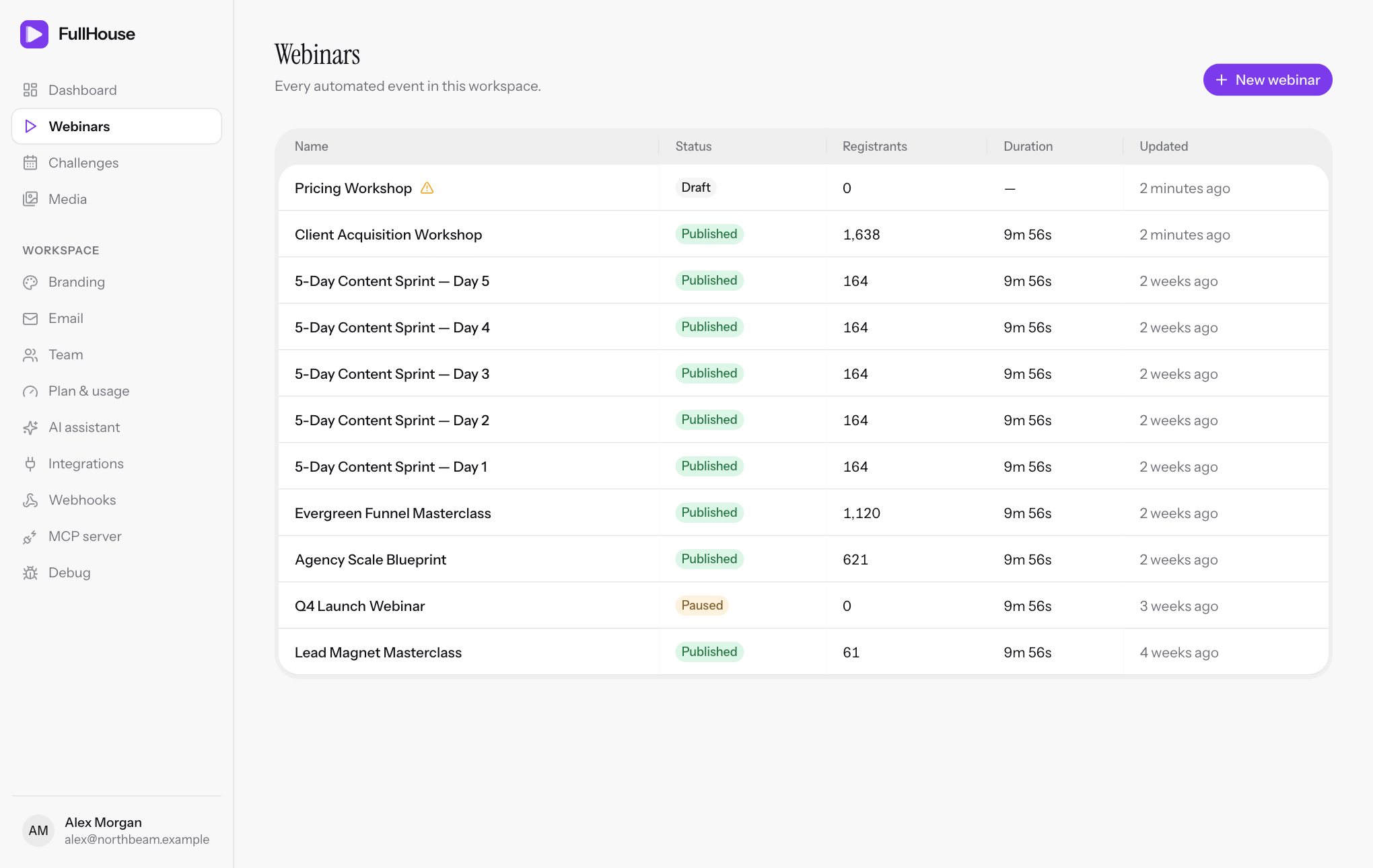
Open Webinars in the sidebar to see every webinar in your workspace, most recently updated first.
| Column | What it shows |
|---|---|
| Name | The internal name. A warning triangle next to it means the video needs attention (hover text: “Video source needs attention”). |
| Status | Draft, Published or Paused. See Webinar statuses. |
| Registrants | Everyone who has registered, across all sessions. |
| Duration | The length of the video, or a dash if there is no validated video yet. |
| Updated | How long ago the webinar was last updated. |
Click a row to open that webinar on its Overview tab.
The days of a challenge are webinars too, so they appear in this list, named after the challenge and day. Set them up from the challenge rather than treating them as standalone webinars.
If you have no webinars yet, the page shows No webinars yet and a Create your first webinar button.
Create a webinar
Start a new webinar
On the Webinars page, choose New webinar.
Name it
Enter a Name, up to 120 characters. This is an internal name that only you see, such as “Spring launch masterclass”.
Create it
Choose Create webinar. FullHouse creates a draft and opens Set up on the Details step.
A new webinar starts with:
- A Public title copied from the name, so change this if the name isn’t meant for attendees. Do it in Details.
- A generated web address made from the name plus eight random characters.
- A default registration page, thank-you page, room and replay.
- Seven emails, all switched on: a confirmation, three reminders, two follow-ups and a replay email.
It has no video and no schedule. Those two are what you must add before it can go live.
Find your way around a webinar
Every webinar has the same header and tabs.
| Tab | What it’s for |
|---|---|
| Overview | The report: registrations, attendance, retention, sources. See Overview report. |
| Set up | Everything about how the webinar looks and behaves. Covered below. |
| Registrants | Who signed up, with a count beside the tab name. See Registrants. |
| Sessions | Each session time and who is in it. See Sessions. |
| Questions | Questions from attendees, with a badge for the open ones. See Questions. |
| Live chat | Talk to people in the room. See Live chat. |
Above the tabs you’ll see the status (or N watching now while people are in the room), a one-line summary of the schedule, and the video length. On the right:
| Button | What it does |
|---|---|
| Copy registration link | Copies your public page address, in the form https://showtell.live/w/your-slug. |
| Preview or View page | Opens the registration page in a new tab. See Preview before you publish. |
| Publish or Pause | Takes the webinar live, or stops new registrations. If something’s missing, Publish opens a Not ready to publish yet dialog listing what to fix. See Go live. |
| More actions (the three dots) | Duplicate and Delete…. On a challenge day, Delete… explains that the day is managed from its challenge. |
How the Set up editor works
Open Webinars → your webinar → Set up. Steps are grouped by when they matter to the attendee.
| Group | Steps |
|---|---|
| Before they join | Details, Schedule, Registration page, Thank-you page, Reminder emails |
| In the room | Video, Waiting room, Room timeline, Chat & questions, AI answers |
| Afterwards | Replay, Follow-up emails, Automations, Tracking |
Below the groups, a card shows the current status and how many required things are left, such as “2 things to finish before going live”, or “Ready to go live.” It opens the Go live checklist, with Go live checklist or, once published, Review checklist and “Changes apply to sessions that start after you save.” On a small screen this card is hidden and the steps become a row you scroll sideways, but the Publish button in the header is still there.
You can do the steps in any order and come back to any of them later. Room timeline takes up the full width and hides this list, so use the arrow beside Set up at the top to go back.
What the ticks mean
Six steps show a small circle: a green tick when done, a dashed outline when not.
| Step | Ticked when |
|---|---|
| Details | The public title and presenter name are both filled in |
| Schedule | At least one schedule is active |
| Registration page | The headline is filled in |
| Reminder emails | Your email sender is ready and at least one reminder is on |
| Video | The video has passed validation |
| Room timeline | There’s at least one chat message, offer, poll or handout |
A tick is a progress hint only. A missing tick on Details or Registration page doesn’t stop you publishing. Only the required items do.
Save your changes
Most steps have their own save button at the bottom, usually Save changes. As soon as you edit something, a bar sticks to the bottom of the screen showing Unsaved changes, with Discard to undo your edits and the save button beside it. You can also press Cmd+S on a Mac or Ctrl+S on Windows.
A Saved tick and a “Changes saved.” message confirm it worked. If a field fails its check, the error appears under that field, the same message appears in the save bar so you can see it from anywhere on the step, and nothing is saved. Any other failed save shows as a red message on screen.
Two steps work differently:
- Schedule saves each schedule when you confirm the dialog for it.
- Room timeline saves as you drag things around.
If you have unsaved changes
Switching to another step, using the back arrow on Room timeline, or choosing another email in the list opens a dialog titled You have unsaved changes: “Save them before moving on, or discard them. Stay to keep editing.”
| Button | What it does |
|---|---|
| Stay | Keeps you on the step with your edits. |
| Discard | Drops your edits and moves on. |
| Save changes | Saves, then moves on. If the save fails, you stay on the step with the message showing. |
A typed Video link, an unsaved Room timeline item, and Registration page edits while you’re on the Embed code tab all count as unsaved. If you leave Set up altogether, such as by opening another tab or page, your browser asks “You have unsaved changes. Leave without saving?”
Editing a webinar that’s already live
There’s no separate draft of a published webinar. Saved changes apply straight away, so the next visitor to the registration page sees them.
People already registered keep their session time. Changes to email wording reach them too, because each email is filled in at the moment it’s sent. See what happens when you edit an email.
Use the live preview
On steps that have a preview, it sits to the right of the form on a wide screen. On narrower screens, use the Preview button at the bottom right, which slides the preview in from the side.
| Step | What the preview shows |
|---|---|
| Details, Schedule, Registration page | The registration page |
| Thank-you page | The thank-you page, with a sample registrant called Ava |
| Reminder emails, Follow-up emails | The selected email, under What they receive |
| Video, Chat & questions | The room |
| Waiting room | The waiting room |
| Replay | The replay room |
Room timeline, AI answers, Automations and Tracking have no preview pane.
The preview updates as you type, before you save. Switch between Phone and Desktop to see the layout a visitor gets at that width. Links and forms inside the preview don’t do anything. On the registration page preview, session times are the ones a visitor would be offered right now, and the arrow icon opens the page in a new tab.
Preview before you publish
Preview in the header opens the real registration page with a strip across the top: “Preview: this is how visitors see your registration page.” It works on a draft or paused webinar as long as you’re signed in. Your public link won’t work for anyone until the webinar is published.
The form on this page is live. If you register on it, you create a real registrant and real emails go out, which makes it a good way to test the whole journey. Your visit doesn’t count as a page view in your report.
What you need before publishing
Two things are required:
| Requirement | Message if it’s missing |
|---|---|
| A video that has passed validation and has a known length | “Add a video source that passes validation (with a known duration) before publishing.” |
| A schedule that has at least one session to offer right now | “Add at least one schedule before publishing.” |
A schedule that exists but has nothing to offer doesn’t count. For example, a Specific dates schedule whose dates are all in the past will still block publishing.
The other checklist items, a registration headline, an email sender and timeline content, are recommended, not required. The full list is on the Go live page.
Webinar statuses
| Status | Public registration page | Existing registrants |
|---|---|---|
| Draft | Not available to visitors. You can preview it while signed in. | None yet, unless you tested from the preview. |
| Published | Open and accepting sign-ups. | Everything runs as normal. |
| Paused | Not available to visitors. You can preview it while signed in. | Their sessions and emails carry on. |
Pause a webinar
Pause when you want to stop new sign-ups, for example while you rework the offer or when a launch has closed.
Choose Pause in the header, or Pause webinar on the Go live step. It takes effect at once, with no confirmation.
While paused:
- The registration page and the embedded sign-up form stop working for visitors.
- People already registered can still use their personal links, and their sessions still run.
- Reminder and follow-up emails to those people still go out.
- The option to move to a different session disappears from their thank-you page and waiting room.
To resume, choose Publish. Your link stays the same, and the requirements above are checked again.
Duplicate a webinar
Use this to run a variation, or to start from a webinar you already like.
Open More actions → Duplicate. FullHouse creates a new draft called “Your webinar (copy)” with a new web address, and opens its Set up.
| Copied | Not copied |
|---|---|
| Details, including the public title | Registrants |
| Registration page, thank-you page, room, replay and tracking settings | Sessions that have passed, and all session times from recurring and just-in-time schedules (these are created again as people register) |
| AI answers settings | Analytics, poll answers, questions and feedback |
| The video | Automations, so add these again |
| Room timeline | The link to a challenge, if the original was a challenge day |
| All seven emails, with your edits and on/off settings | |
| Schedules, and upcoming sessions from Specific dates schedules |
The copy is independent. Changes to it don’t touch the original.
Delete a webinar
Open More actions → Delete…, then confirm with Delete webinar. Choose Keep it to back out.
This removes the webinar with all its registrants, sessions and analytics. Join links stop working straight away, and emails that hadn’t gone out yet are canceled. This can’t be undone, and FullHouse doesn’t stop you deleting a published webinar or one with people in the room.
A video you uploaded stays in your media library so other webinars can keep using it. Delete it there if you no longer need it.
If you might want the data later, export your registrants first, or pause the webinar instead. A challenge day can’t be deleted on its own.