Creating a challenge takes four fields. FullHouse builds one webinar for each day straight away, so you can start adding videos immediately.
Create the challenge
Open the form
Go to Challenges and choose New challenge.
Fill in the details
Enter the fields in the table below.
Save
Choose Create challenge. You land on the challenge’s set-up page with the message “Challenge created. Set up each day’s video and timeline.”
| Field | What it does | Default | Limits |
|---|---|---|---|
| Name | Names the challenge and starts off as its public title too | None | Required, up to 120 characters |
| Days | How many daily sessions it runs | 3 | 2 to 14 |
| First day | The date of Day 1 | None | Required. Today or later, in the chosen time zone |
| Time (daily) | The start time on every day | 18:00 | Required |
| Timezone | The zone your date and time are read in | Your browser’s time zone | Required |
What gets created
- A challenge with the status Draft. Only you and your team can see it.
- One webinar per day, named and titled like
5-Day Launch Challenge — Day 1, each with one session at the right date and time. - Emails switched on for each day: the confirmation on Day 1, and the three reminders on every day. See Challenge emails.
- A sign-up link based on the name plus some random characters. The link doesn’t change if you rename the challenge later, and you can’t edit it.
Edit the basics
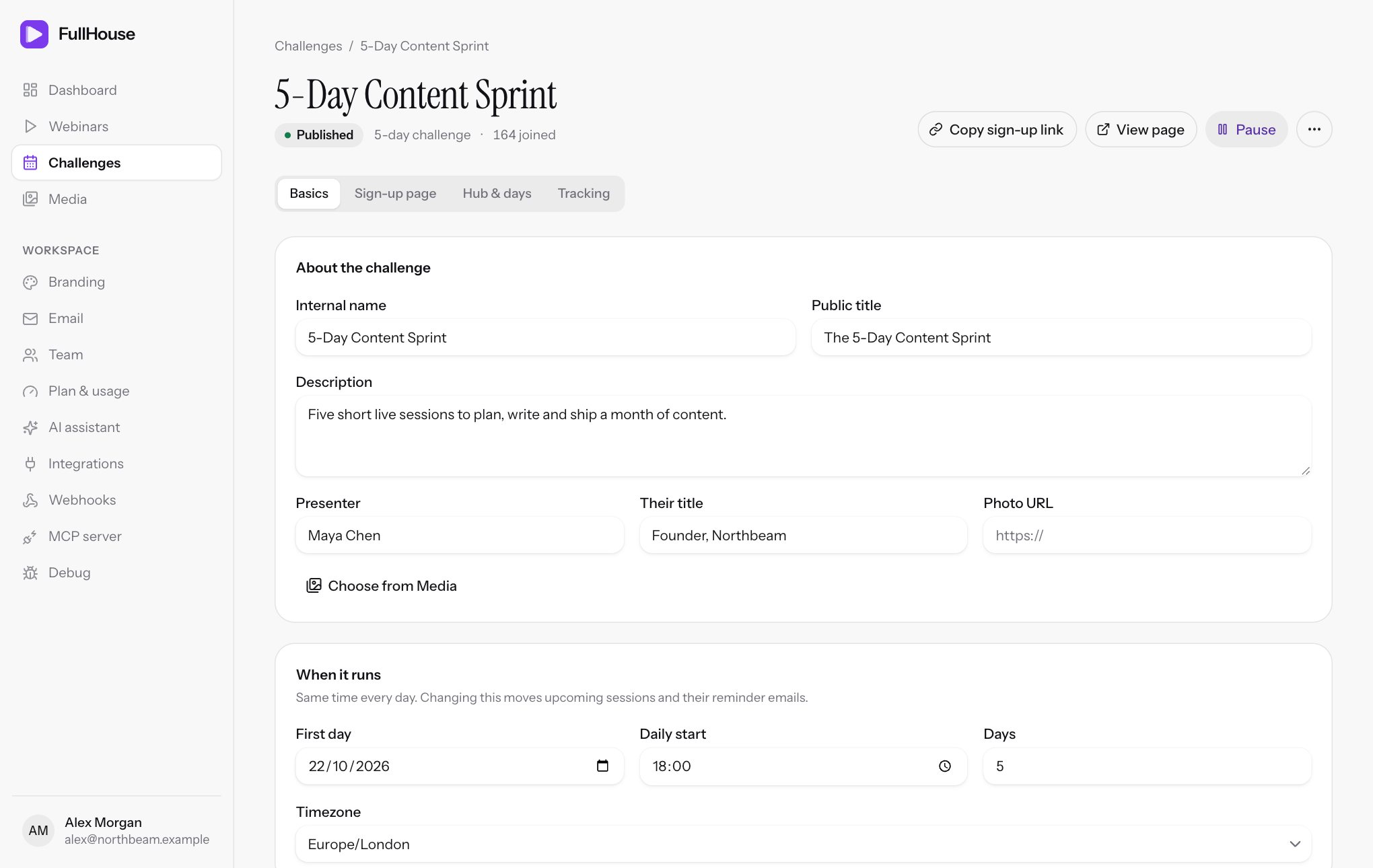
Open the challenge and stay on the Basics section. Choose Save changes at the bottom when you’re done. A live preview of the hub and the sign-up page sits beside the form.
About the challenge
| Field | What it does | Limits |
|---|---|---|
| Internal name | What you see in your lists. Attendees don’t see it | Required, up to 120 characters |
| Public title | The name attendees see on the sign-up page, the hub and the embedded form | Required, up to 160 characters |
| Description | Shown on the sign-up page under the subheadline, keeping your line breaks, and in the preview. It isn’t shown in the small embedded popup | Up to 5,000 characters |
| Presenter | The presenter’s name on the sign-up page and hub. The hub also uses the first name for “A note from…” | Up to 100 characters |
| Their title | A short line under the name on the sign-up page, such as “Founder, Northbeam” | Up to 100 characters |
| Photo URL | The presenter’s photo. Paste a link, or use Choose from Media to pick one from your media library | Must start with https://, up to 500 characters |
Renaming the challenge doesn’t rename days that already exist. Change a day’s public wording with its Title field. See Set up each day.
When it runs
| Field | What it does | Limits |
|---|---|---|
| First day | The date of Day 1 | A valid date |
| Daily start | The start time on every day | A valid time |
| Days | How many days it runs | 2 to 14 |
| Timezone | The zone your date and time are read in | Required |
These settings move upcoming sessions and their reminder emails. They lock once anyone has watched any day. Read Change the schedule before changing them on a live challenge.
How the dates and times work
- Days are consecutive. Day 2 is the calendar day after Day 1, including weekends. You can’t skip a day.
- The local time stays the same. A 6:00 PM challenge in New York stays at 6:00 PM New York time when the clocks change partway through.
- Clocks going forward. If a chosen time doesn’t exist on one of the days, saving fails with “One of these days has no such local time because the clocks change. Choose another time.”
- Clocks going back. If a time happens twice on one of the days, the session uses the first one.
- Attendees see their own time. The sign-up page and hub show times in the visitor’s own time zone. Emails use the time zone recorded when the person signed up.
If saving fails
| Message | What it means | What to do |
|---|---|---|
| “Choose today or a future date.” | The first day is in the past in the chosen time zone. This only applies when creating | Pick today or later |
| “Enter a whole number between 2 and 14.” | The number of days is out of range | Choose 2 to 14 days |
| “Use 1 to 120 characters.” | The name is empty or too long | Shorten it or fill it in |
| “Use 1 to 160 characters.” | The public title is empty or too long | Shorten it or fill it in |
| “Choose a valid start date.” | The date can’t be read | Pick a date with the date picker |
| “Choose a time in HH:MM format.” | The time can’t be read | Pick a time with the time picker |
| “Choose a valid time zone.” | The zone wasn’t recognised | Choose one from the list |
| “Enter a valid HTTPS URL.” | The photo link isn’t an https:// address |
Use an https:// link, or pick the image from your media library |
| “Days with attendance must keep their original schedule and remain in the challenge.” | Someone has already watched, so the schedule is locked | See Change the schedule |
Next
Add a video to each day in Set up each day.