The registration page is where visitors pick a session and save their seat. FullHouse hosts it for you, and you can also embed the form on your own site. Open it from Webinars → your webinar → Set up → Registration page.
Your public page lives at https://showtell.live/w/your-slug. Use Copy registration link at the top of any webinar page to get it. See URL slug to change the address.
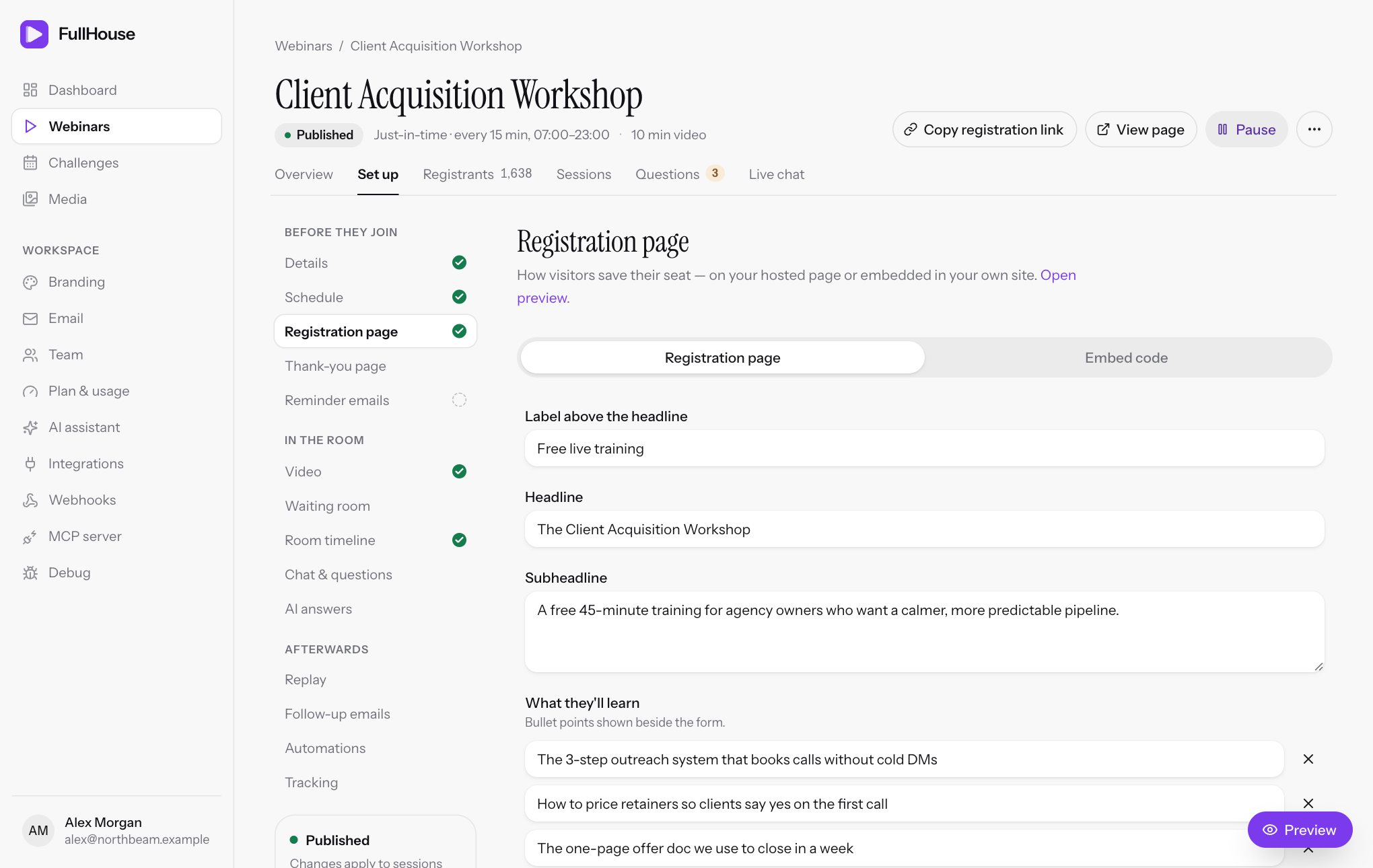
The step has two tabs: Registration page for the content and Embed code for your own site. The preview beside the form updates as you type. Choose Save changes when you’re done.
Write the page
| Field | Default | Limit | Where it appears |
|---|---|---|---|
| Label above the headline | Free live training | 40 characters | Small capitals above the headline. If you clear it, “Free live training” comes back. The waiting room uses it too. |
| Headline | Empty | 200 characters | The large heading. If it’s blank, visitors see your Public title. |
| Subheadline | Empty | 400 characters | A supporting sentence under the headline. Hidden if blank. |
| What they’ll learn | None | Up to 8 bullets, 200 characters each | A numbered list under the heading “What you’ll learn”. Beside the form on desktop, below it on a phone. The waiting room uses these too. |
| Button label | Save my seat | 60 characters, required | The button that submits the form. |
Use Add bullet for each point, and the X to remove one. A bullet that’s blank or over the limit stops the page saving, and “Fill in or remove any blank bullets. Use up to 8 bullets of 200 characters each.” appears below the list and in the save bar.
Your logo or workspace name and your brand colour come from Branding, and the presenter comes from Details. Your legal footer appears at the bottom of the page if you’ve set one.
The registration page isn’t listed in search engines. Visitors reach it from links you share.
Choose what to collect
Email is always collected and always required, because that’s how people get their personal link. For the other three, pick a mode.
| Field | Default | Modes |
|---|---|---|
| First name | Required | Required, Optional or Hidden |
| Last name | Hidden | Required, Optional or Hidden |
| Phone | Hidden | Required, Optional or Hidden |
An optional field is labelled “(optional)” on the form. Every extra required field costs some sign-ups, so ask only for what you’ll use. Most hosts keep first name and nothing else.
If you make first name Optional or Hidden, anyone without one gets “Hi there,” in the default emails. The thank-you page shows “You’re in.” instead of “You’re in, Ava.”
Limits on what visitors can enter: email 255 characters, first and last name 100 each, phone 40. Phone numbers aren’t checked for format.
Add registration questions
Ask up to five questions to understand what people want from the webinar. Choose Add question under Registration questions.
| Setting | Limit | What it does |
|---|---|---|
| Question | 200 characters, required | The label shown on the form. |
| Answer type | Short text gives a text box, with answers up to 1,000 characters. Choose one option gives a dropdown. | |
| Required | Required questions show an asterisk, and the rest show “(optional)”. | |
| Answer options | 2 to 10 options, 120 characters each | Dropdown choices, one per line. They must all be different, with no blank lines. |
Answers stay with each registrant. You’ll find them on the registrant’s page and in the registrants CSV export.
Each answer is saved along with the wording of its question, so changing or removing a question later doesn’t affect answers you’ve already collected. Answers can’t be used as merge tags in emails.
Ask for consent
Turn on Consent checkbox to require a tick before someone can register. Use Consent text (up to 500 characters) for the wording, which defaults to “I agree to receive emails about this webinar.” It’s off by default.
If someone doesn’t tick it, they see “Please tick the consent box to continue.” The time they agreed is saved with their registration, and included in the CSV export.
FullHouse doesn’t decide what your audience’s consent rules are, so check what applies to you. Your emails always include an unsubscribe link, with or without this box.
Set the countdown and session options
| Setting | Default | What it does |
|---|---|---|
| Countdown to next session | On | Shows “Next session starts in” above the form, ticking down. It only appears when the next upcoming session is less than six hours away. |
| Session options shown | 3 (1 to 6) | How many upcoming times a visitor can choose between. See Decide how many sessions to show. |
What visitors see in the session picker
The form starts with Pick a time, followed by “your time zone” or a city name, depending on your Time display setting. The first option is selected already.
| What they see | When |
|---|---|
| A time with “starts in 18 min” | A session less than six hours away. |
| A time with “Today”, “Tomorrow”, a weekday, or a date such as “Mon 3 Nov” | A session further away. |
| A time with “live now · join in progress” | A session that has started and can still be joined. See Let people join late. |
| Watch now with “starts as soon as you register” | An instant watch session. |
| “No upcoming sessions right now. Check back soon.” | No session is available. The submit button is disabled. Check your schedule. |
Under the button is a line reading “We’ll email your personal join link straight away.” It’s hidden if you turn off the confirmation email, and the preview follows the same rule. In that case, make sure your thank-you page gives people their link.
What happens when someone registers
They get a personal link
FullHouse creates a registration for that session, with a private link only they should use.
Their emails are lined up
The confirmation goes out straight away, and the reminders and follow-ups that are switched on are lined up for later. See Reminder emails.
Your connected tools hear about it
Automations with the Registers trigger run, and webhooks receive the event.
They land on the thank-you page
See Thank-you page. If you’ve set a redirect, they go there instead.
FullHouse also saves the visitor’s browser timezone, and any UTM values on the page address: utm_source, utm_medium, utm_campaign, utm_term and utm_content, up to 120 characters each. These feed your report and CSV exports.
If someone registers twice
Email addresses are compared ignoring capitals.
| Situation | What happens |
|---|---|
| Same email, same session | No second registration. For privacy, they see a page titled Find your personal link rather than their thank-you page. FullHouse emails them a short “Your access link” message with their personal link, at most once every 10 minutes. You can’t edit this email. |
| Same email, different session | This counts as a new registration, with its own personal link and emails. |
Automated sign-ups and limits
The form includes a hidden field that real people never see. Anything that fills it in is treated as a bot, and quietly sent back to the page without registering.
Each connection (IP address) can submit 10 registrations a minute. Beyond that they see Too many attempts and “Please wait a minute, then try again.” It’s rare, but keep it in mind if you run a live demo with a roomful of people on one network.
Embed the form on your own site
Use the Embed code tab to put registration on your own landing page or funnel builder. Visitors register in a popup without leaving your page, then land on their personal thank-you page.
| Snippet | What it does |
|---|---|
| Drop-in button | Paste it where the button should appear. Set the wording in Button label, which defaults to “Save my seat”. |
| Use your own button | Add data-showtell-register to any element on your page. |
The widget isn’t affected by your page’s styles, and UTM values pass through automatically. It only works while the webinar is published. For full details, see Embed widget.
Messages visitors may see
| Message | Meaning |
|---|---|
| “Enter a valid email address.” | The email is missing or malformed. |
| “Please complete this field.” | A required name or phone field is empty, or too long. |
| “Pick a session time first.” | No session was selected. |
| “That session is no longer available — pick another time.” | The session they chose has gone and nothing else from that schedule is available. |
| “Please tick the consent box to continue.” | The consent box isn’t ticked. |
| “Please provide a valid answer.” | A required question is blank, or an answer is too long. |
Messages you may see when saving
| Message | What to do |
|---|---|
| “Use 1 to 60 characters.” | Button label is empty or too long. |
| “Use 0 to 200 characters.” | The headline is too long. |
| “Provide between 2 and 10 different answer options.” | A dropdown question needs at least two different options, and no more than ten. |
| “Fill in or remove any blank bullets. Use up to 8 bullets of 200 characters each.” | Shown below the bullet list. Remove empty rows, and shorten long ones. |
| “Put each answer option on its own line, with no blank lines. Use up to 10 options of 120 characters each.” | Shown inside that question’s card. Fix the list of options. |
| “Use 1 to 200 characters.” | A question’s label is blank or too long. Shown inside that question’s card. |
Every failed save also shows its message in the save bar at the bottom of the screen, so you’ll see it even if the field is off screen.