The Registrants tab lists everyone who signed up for a webinar. Use it to look someone up when they email you, to pull a list for a follow-up, to see what happened on one person’s journey, or to add, unsubscribe or delete someone.
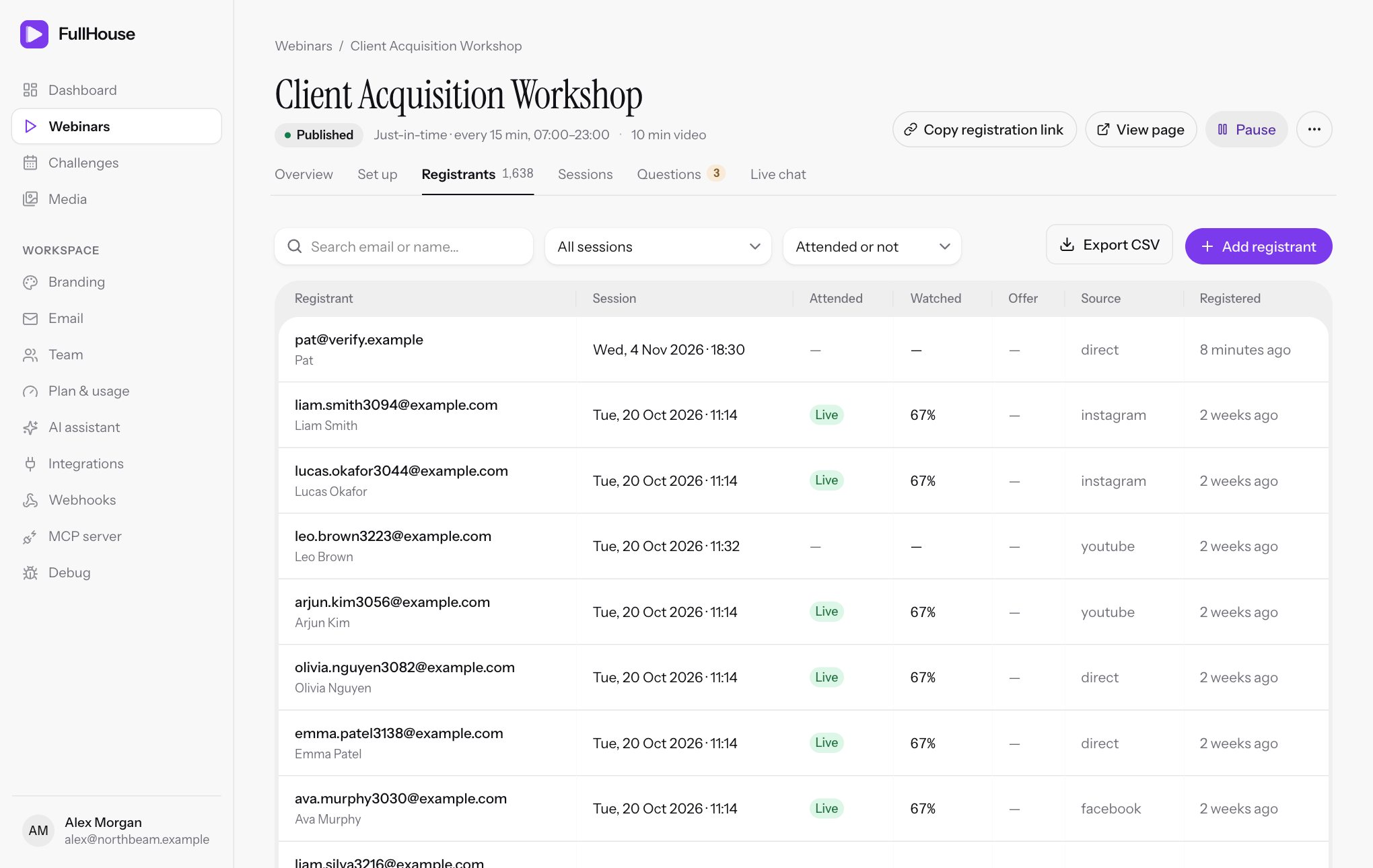
Open it from Webinars → your webinar → Registrants. The number beside the tab name is the total. The list shows the newest first, 25 to a page, with times in your browser’s time zone.
Find people
| Control | What it does |
|---|---|
| Search email or name… | Finds any part of an email, first name or last name. Up to 200 characters. |
| All sessions | Limits the list to one session. Lists your 100 most recent sessions. |
| Attended or not | Choose Attended or Didn’t attend. This is about the live session, so someone who only watched the replay counts as Didn’t attend. |
Filters combine, and Export CSV exports whatever you’ve filtered to.
If nothing matches, you’ll see No matches and Try clearing the filters. With nobody registered yet, it’s No registrants yet.
What the columns mean
| Column | What it shows |
|---|---|
| Registrant | Email, with their name beneath if they gave one, and a red Unsubscribed label if they’ve opted out |
| Session | The session they’re booked for |
| Attended | Live if they joined the live session, Replay if they only watched the replay, otherwise — |
| Watched | Share of the video they played live, or — if they didn’t attend live |
| Offer | Clicked if they clicked an offer in the live session, otherwise —. A click made only on the replay shows on the CSV and the report, not here. |
| Source | Their utm_source, or direct |
| Registered | How long ago they signed up |
Click a row to open that person.
The registrant page
This page has everything about one person. At the top you’ll see their email, name, phone and time zone, plus Unsubscribed in red if they’ve opted out. The buttons beside them are Resend confirmation, Unsubscribe or Resubscribe, and Delete.
Personal join link
Copy this if someone has lost their link. It opens the room as that person, so share it only with them. The same link works for every state of their session.
Attendance
| Item | What it shows |
|---|---|
| Session | Their booked session |
| Registered | When they signed up |
| Added by | For someone added by hand, the email address of the person who added them, “who confirmed permission to email them” |
| Joined at offset | How far into the video they were when they first joined |
| Watch time | Time played live, with the share of the video |
| Furthest point | The furthest point they reached |
| Offer | Clicked, Seen, not clicked or Not seen, for the live session |
utm_ values |
Each UTM value they came with |
| Your questions | Their answers to your registration questions |
If they didn’t join live, you’ll see Didn't attend live., plus Watched the replay. if they did.
Emails
Every email planned for this person, with its send time and status. See Reminder emails and Follow-up emails.
| Status | Meaning |
|---|---|
| Pending | Waiting for its send time |
| Processing | Being sent, or waiting to try again after a problem. The reason shows beside it. |
| Sent | Accepted for delivery |
| Failed | Gave up after several tries. The reason shows beside it. Retry it from Debug. |
| Skipped | Not sent when it fell due. The reason shows beside it. See When a follow-up doesn’t send. |
| Canceled | Called off because they unsubscribed, moved to another session, or you canceled the session |
Reminders whose time had already passed when they registered aren’t planned, so they don’t appear. Any questions they’ve asked show under this list, with your replies.
Activity
A timeline of what they did, newest first, up to the last 100 entries, with how far into the video each happened.
| Entry | Meaning |
|---|---|
| Registered | They signed up |
| Opened the room | They loaded their join or replay link |
| Joined live | They joined the live session |
| Watch milestone | They reached 10%, 25%, 50%, 75%, 90% or 100% live |
| Saw the offer | An offer appeared for them |
| Clicked the offer | They clicked it |
| Opened a handout | They clicked a handout |
| Answered a poll | They answered a poll |
| Asked a question | They sent a question |
| Opened the replay | They started the replay |
| Sent a chat message | They posted in the chat |
| Got an AI answer | An AI answer was sent to them |
Resend a confirmation
If someone can’t find their link, click Resend confirmation on their page. You’ll see Confirmation email queued., and a new Registration confirmation row appears under Emails.
It sends your current confirmation text straight away. It’s skipped if they’ve unsubscribed, their session was canceled or you’ve turned that email off, and the row tells you which. In those cases, copy their Personal join link and send it yourself.
Anyone can also get their link again by signing up for the same session with the same email. They won’t get a second registration, and their link is emailed to them, at most once every 10 minutes. They see Find your personal link, which doesn’t reveal the link on screen.
Add a registrant
Add someone by hand when they’ve asked you to sign them up, for example from a phone call or an email. It works the same way as your sign-up form: the same field rules and messages, the same emails, and it counts as a registration. The registrant.created webhook and any Registers automations fire too.
Open the form
Choose Add registrant, at the top right next to Export CSV.
Fill it in
Enter the fields in the table below.
Confirm you have permission
Tick I have permission to email this person. We record this as their consent, along with your email address. The Add registrant button stays disabled until it’s ticked.
Add them
Choose Add registrant. You’ll see Registrant added. Their confirmation email is on its way., or Registrant added. if the confirmation email is turned off.
| Field | When it shows | Required? |
|---|---|---|
| First name, Last name | Always | Only if your sign-up form requires them |
| Always | Yes | |
| Phone | Unless your sign-up form has phone turned off | Only if your sign-up form requires it |
| Session | Always, with the first one selected | Yes |
| Your questions | Only required questions from your sign-up form. Optional ones aren’t shown | Yes |
Session lists the next sessions on offer, up to six. Each one shows its date and time, “Watch right away” for an instant session, or “In progress, started” and a time for a session that’s under way. With nothing on offer, the form says This webinar has no upcoming sessions. Add a schedule first. and can’t be submitted.
A few things to know:
- Duplicates: the same email on the same session doesn’t create a second registration. You’ll see
They're already registered for that session. We sent their access link again. - Time zone: the form doesn’t ask, so the person’s time zone is set to the webinar’s, or UTC if it has none. Their emails show times in that zone.
- Drafts: adding works on draft and paused webinars, so you can use it to test.
- Limit: 60 adds a minute per webinar.
The person shows Added by on their page, and the CSV export has an Added by column with the email address of whoever added them.
There are other ways to add someone. They can sign up on your registration page, a connected AI assistant can register them, or Pinball can if you have it linked. There’s no bulk import.
Unsubscribe or resubscribe someone
Attendees unsubscribe with the link in every email. They see a confirmation page first, then You're unsubscribed. See how unsubscribing works for attendees.
If someone asks you to take them off instead, open their page and choose Unsubscribe. The dialog says their pending emails are canceled, and that they can still use their join link. You’ll see Unsubscribed. They won't get any more emails for this webinar. Their remaining emails become Canceled, and their link and stats keep working.
If they change their mind, choose Resubscribe. The dialog says Only do this if they've asked to hear from you. You’ll see Resubscribed. Their upcoming emails will go out again.
- Canceled emails that are still in the future go out as planned, unless the session was canceled.
- Emails whose time passed while they were unsubscribed aren’t sent late.
Delete a registrant
Delete someone to clear out a test sign-up, or when a person asks you to remove their details. Open their page and choose Delete, then Delete registrant to confirm. It’s permanent and can’t be undone. You’ll see Registrant deleted.
| What | What happens |
|---|---|
| Counts and reports | They leave them all: registrant and attendee counts, attendance, activity, poll totals, questions, feedback, live chat messages and the retention curve |
| Pending emails | Canceled, along with any waiting access link, automation or webhook delivery about them |
| Webhooks, automations, emails | Deleting fires none of them |
| Their join link | Shows the invalid link page |
| Signing up again | The same email can register again as someone new |
| Sending health on Plan & usage | The totals keep their numbers, but those records no longer hold the person’s email address |
| Daily email limit | Emails already sent still count |
| Visits | Don’t change, because page views aren’t tied to a person |
Export them first if you might want their details later.
Registrants in a challenge
Each day of a challenge has its own Registrants tab, and these actions cover the person’s whole enrolment rather than one day.
| Action | What’s different | Message |
|---|---|---|
| Add registrant | There’s no Session field. The form says they join every day of the challenge and get the same emails as anyone who signs up. Field rules and questions come from the challenge’s sign-up page. A duplicate is the same email in the same challenge | Added to the whole challenge. Their confirmation email is on its way. or Added to the whole challenge. For a duplicate, They're already in this challenge. We sent their access link again. |
| Unsubscribe | Covers every day, from any day’s page. Days added later stay unsubscribed too | Unsubscribed from the whole challenge. They won't get any more emails for it. |
| Resubscribe | Covers every day. A day added while they were unsubscribed has no emails planned yet, so resubscribing plans its emails, which includes a confirmation | Resubscribed. Their upcoming emails will go out again. |
| Delete | Removes them from every day, along with their challenge enrolment and hub link | Registrant deleted from the whole challenge. |
Moving someone to another session
Attendees change their own session from their thank-you page or waiting room, as long as they haven’t watched any of it. Their link stays the same, pending emails are replaced with ones for the new time, and they’re counted against the new session. There’s no way for you to move them from this tab.
Export to CSV
Use Export CSV on this tab to download the list as you’ve filtered it. Export on the Overview tab downloads the same registrants file without filters, plus poll answers and feedback. These files are all time, regardless of the report’s period.
Files are named after the webinar’s address, such as your-webinar-registrants.csv. They use UTF-8 and open correctly in Excel, Numbers and Google Sheets. Dates and times are in UTC, like 2026-11-04T18:00:00+00:00, not your local time.
Registrants
Registrant ID,Email,First name,Last name,Phone,Timezone,Session starts at,Registered at,Attended live,Live watch seconds,Live watch percent,Watched replay,Replay watch seconds,Saw offer,Clicked offer,UTM source,UTM medium,UTM campaign,Consented at,Unsubscribed at,Registration answers (JSON),Added by| Column | What’s in it |
|---|---|
| Registrant ID | FullHouse’s number for this registration |
| In lowercase | |
| First name, Last name, Phone | As entered, blank if not asked |
| Timezone | The time zone of their browser when they registered, or the webinar’s if you added them by hand |
| Session starts at | Their session’s start time |
| Registered at | When they signed up |
| Attended live | yes or no |
| Live watch seconds | Time played in the live session |
| Live watch percent | That time as a share of the video, from 0 to 100 |
| Watched replay | yes or no |
| Replay watch seconds | Time played on the replay |
| Saw offer | yes if they saw an offer, live or on the replay |
| Clicked offer | yes if they clicked an offer, live or on the replay |
| UTM source, UTM medium, UTM campaign | Blank if none. utm_term and utm_content aren’t exported. |
| Consented at | When they ticked your consent box or you confirmed permission, blank if they didn’t or it was off |
| Unsubscribed at | When they unsubscribed, blank if they haven’t |
| Registration answers (JSON) | Their answers. Without any it’s [], otherwise like the example below |
| Added by | The email address of whoever added them by hand. Blank for people who signed up themselves |
Here’s an example of Registration answers (JSON):
{"role":{"question":"What's your role?","answer":"Founder"}}Poll answers
One row for each answer. A person who changed their answer has one row, with their latest choice.
Poll ID,Question,Answer,Email,Name,Session starts at,Answered atIf you’ve since removed an answer from a poll, Answer reads Option no longer available. Poll ID tells two polls with the same question apart.
Feedback
One row for each rating.
Email,Name,Rating (1-5),Comment,Session starts at,Submitted atSee also CSV formats.