This page describes the room from the attendee’s side, so you can test it, answer their questions and write your emails with confidence. The room looks and behaves like a live broadcast: everyone watches the same moment and nobody can skip around.
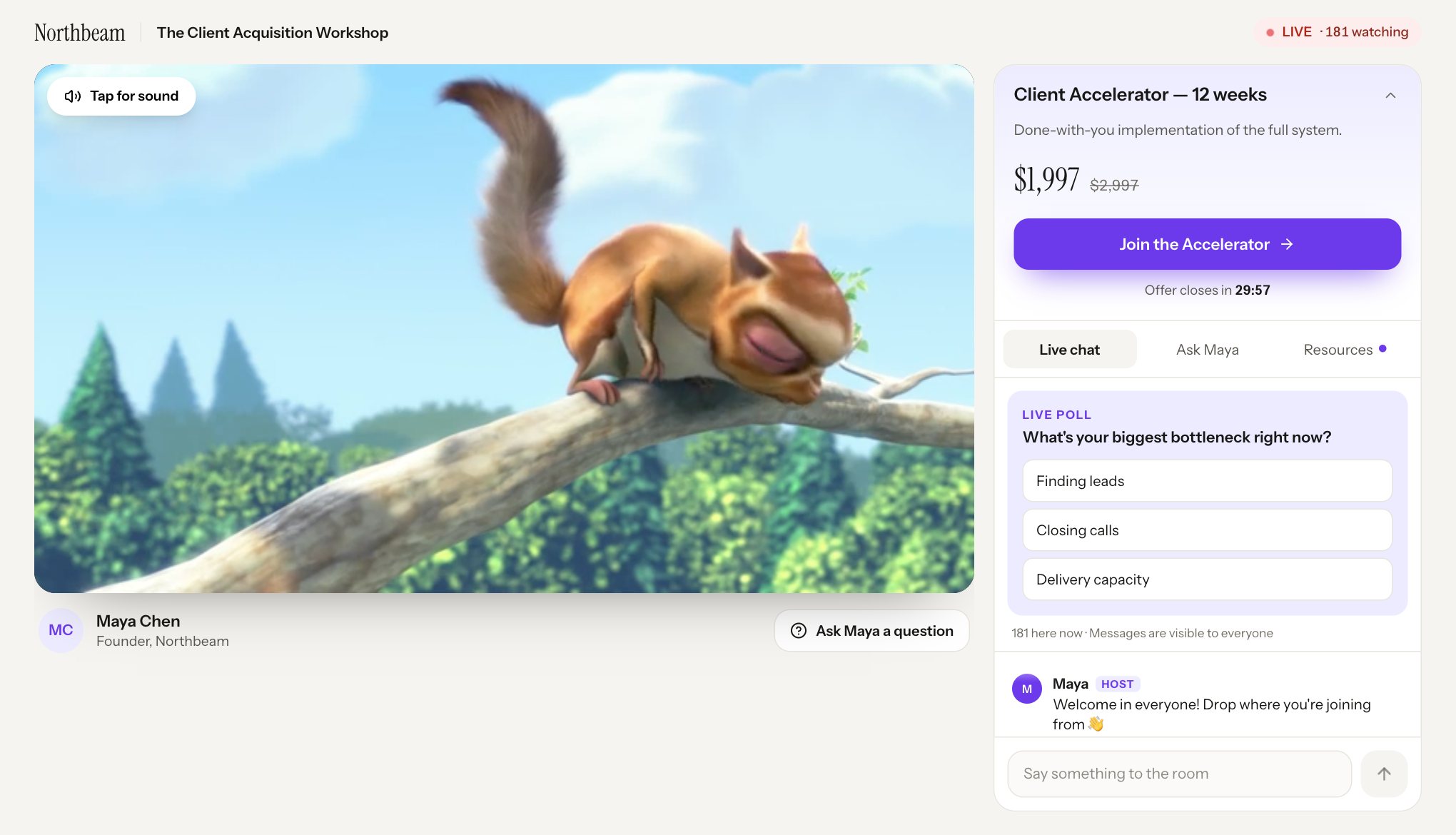
The layout
The room changes layout at 1,024 pixels wide. Turning a tablet or resizing a window doesn’t restart the video.
On a computer
- Top bar: your brand, the webinar title and a red LIVE badge, with “186 watching” if the counter is on.
- Left: the video, with the presenter’s photo, name and title under it, and an Ask Maya a question button.
- Right: a panel with the offer at the top once it appears, then the tabs.
On a phone or small tablet
- Top bar: your brand and the LIVE badge with the count.
- Video: full width at the top. It plays in the page, not fullscreen, unless the person asks.
- Presenter row: with a round question-mark button for asking a question.
- Tabs and panel: the rest of the screen.
The tabs
| Tab | When it shows | What’s in it |
|---|---|---|
| Chat, named by your Chat tab label | Always in the live room | Any open poll, then the chat. |
| Ask (presenter’s first name), or Q&A | When the Q&A tab is on | Private questions and replies. |
| Resources | Once the first handout unlocks | Handouts. A dot on the tab marks a new one. Clicking one opens it in a new tab. |
Joining
From the start time, the join link goes straight into the video at the live position, with no join button. Someone who was in the waiting room moves in by themselves. While the video loads at the right point, they see “Connecting to the live stream…”
FullHouse counts someone as attending within about 20 seconds of them being in the running session.
Joining late
The video starts at the current position, not the beginning. Whether they can get in depends on the schedule:
| Situation | What happens |
|---|---|
| In the first 60 seconds | Always allowed. |
| Allow joining in progress on, within Late join grace (default 15 minutes, 0 means any time) | They join at the live position. |
| Past the grace period, or joining in progress off | They see “This session already started”, up to three upcoming times and a Pick a new time button. If replays are on, it adds that they can watch the replay when it reaches their inbox. On a challenge day, they see “The live session has passed” with a Back to your challenge hub button. |
| They’ve already been in this session | They can come back at any point until it ends, even after the grace period. |
A late joiner sees:
- Any offer or poll open at that moment.
- All the handouts unlocked so far.
- The scheduled chat from the previous 15 minutes.
- Shared messages from the last 10 minutes, up to 100.
How playback stays in sync
The video follows the session’s clock, not the attendee’s device. That has a few consequences:
- No timeline, no timestamps, no pausing. The player’s controls are mute, a LIVE label, captions if you’ve added them, and fullscreen. On a computer they appear when the pointer is over the video. On a phone they’re always there.
- It corrects itself. Every few seconds, the player checks its position and jumps back into step if it’s more than 4 seconds off. It does the same after buffering and when the tab comes back into focus.
- If it gets paused anyway, for example by a phone call or a headset button, the video shows Rejoin the live stream. Clicking it resumes at the live position, not where they stopped.
- Leaving and coming back puts them at the live position.
The right-click menu is off on the video, and download, playback speed, casting and picture-in-picture are hidden where the browser lets us hide them. Some browsers may still offer a mini-player. It stays in sync when playback resumes.
Sound
The room tries to play with sound. Whether a browser allows that depends on whether the person has interacted with the page.
| Situation | What happens |
|---|---|
| They tapped anything in the waiting room | The video starts with sound. |
| The browser blocks sound | The video starts muted, with a white Tap for sound button at the top left. Their next click or key press anywhere on the page turns the sound on. |
| The browser blocks muted video too, which is rare, or the video is still paused after 8 seconds | A play button appears, reading “Press play to join the live stream”. Pressing it joins at the live position. |
Someone who mutes on purpose stays muted until they unmute.
Captions
If you’ve added captions, a captions button appears in the player’s controls. They’re off until the attendee turns them on, and there’s one language.
Offers
Offers appear at the time you’ve set on the timeline, one at a time.
On a computer: the offer slides in at the top of the right panel, with any image, headline, description, price and struck-through Was price, button and timer. The arrow folds it to one line with Show to bring it back. It stays folded until that offer ends.
On a phone: the offer rises as a sheet over the chat, while the video keeps playing. Keep watching or tapping outside it reduces it to a bar with the headline, price, time left and View.
The button opens your link in a new tab, so the room keeps playing in the original tab.
The timer reads “Offer closes in 14:32”. It runs from when that person first saw the offer, restarts if they reload, and at zero reads “This price is closing now”. The offer and its button stay put until the time you set for it to disappear.
Polls
An open poll shows above the chat, labelled Live poll. One click answers it. The person’s choice gets a tick, and they see a percentage and a bar for each answer. They can’t change their answer, and if they reload the page they see the same results straight away. The poll closes at the time you’ve set, whether they’ve answered or not.
If it can’t save the answer, they see “Your answer was not saved. The poll may have ended; please try again.”
Polls live in the chat tab, so nothing flags a new poll to someone on another tab. See Polls.
Chatting
Enter sends the message, and Shift + Enter starts a new line. The box grows to about four lines, and stops at 2,000 characters. What happens next depends on your settings.
Shared chat off (the default): the message box reads “Send a private message to the host”. The message shows only to them, under “You” with an Only you badge, and reaches your Questions inbox. It disappears from their chat if they reload.
Shared chat on: the message box reads “Say something to the room”. The message goes to everyone in the room, under “You” with an Everyone badge. Other people see their first name, or “Guest”. With the counter on, a line at the top says “186 here now · Messages are visible to everyone”, the same number as the LIVE badge. With the counter off, it reads “Messages are visible to everyone”. Your messages show a Host badge.
Scheduled messages show in the same list, with their name, initials and any Host or Mod badge. The chat follows new messages unless the person has scrolled up. If you’ve turned on the transparency note, it shows at the top of the chat.
Reconnecting
If shared chat loses its connection, the line at the top says “Reconnecting… you can keep chatting” with a spinner, and the room keeps trying with growing gaps of up to 30 seconds. Messages can still be sent during this, and they appear once it’s back. On reconnecting, the person gets the recent history again.
A person can be connected from up to 4 tabs or devices at once. Past that, the extra one stays on “Connecting to live chat…”, though it can still send.
If you mute someone
Their next message fails with “The host has muted your shared chat. Private Q&A remains available.” They’re the only one who sees that. Muting applies to the whole webinar, and you can undo it on the Live chat page. A message you delete disappears for everyone straight away.
Other messages they might see
| Message | What it means |
|---|---|
| Your message was not sent. Please try again. | The send failed. What they typed stays in the box. |
| Connecting to live chat… | The chat is connecting. |
Shared chat allows 20 messages a minute from each person.
Asking a question
The Ask tab, or the Ask Maya a question button, opens a private conversation with you. It says “Only you and Maya’s team see your questions. Replies appear here in the room.”
After sending, the question shows with “Sent. The reply will appear here.” A copy also shows in their chat with an Only you badge. Your reply, or the AI assistant’s, appears under it labelled “Maya replied”, within about 20 seconds. Replies are still there when they come back, including in the replay. Replies aren’t emailed. See Take private questions.
| Message | What it means |
|---|---|
| Please wait 30 seconds before sending another question. | They’ve reached the limit of 5 questions a minute. |
| Your question was not sent. Please try again. | The send failed. |
If the connection or video has trouble
The room is built to carry on through short drops. The session clock keeps running in the browser, and attendance and replies catch up at the next check-in, every 20 seconds or when the tab comes back into view.
| What they see | What to do |
|---|---|
| The video could not load. Check your connection and reload the page. | Choose Reload video. They rejoin at the live position. |
| The player could not load. Please reload the page. | Choose Reload video. |
| This browser cannot play this video format. Please use a current browser. | Update their browser, or use another one. |
| Playback could not start. Please try again. | Click play again, or choose Reload video. |
| The room isn’t ready yet | The webinar has no video. Add one under Video. |
Reloading never loses their place, because their place is the session’s clock.
When the session ends
When the video’s time is up, the room is replaced by an end-of-session page, with “Session ended at 4:45 PM” at the top. People who were in the room see “That’s a wrap, Maya.” Everyone else sees “This session has ended.”
The page can include:
| Section | When it shows |
|---|---|
| Still deciding? with your offer | If an offer is still open at the end. |
| Rewatch any part or Watch it from the start, with Watch the replay | If the replay is open. Shows when it closes, if it does. |
| The replay is on its way | If you’ve set a replay delay. Shows when it opens. |
| How was it? | If they watched any of the session. Marked “Shared privately with the host.” 1 to 5 stars, then an optional comment: “What was most useful?” for 4 or 5 stars, “What could be better?” otherwise. Afterwards, “Thanks for the feedback” and “You rated it 4 out of 5. It goes straight to the host.” If saving fails, “Your feedback could not be saved. Please try again.” |
| From the session | All your handouts. |
| Back to your challenge hub | If the webinar is a challenge day. |
| Redirect countdown | If you’ve set a redirect. |
With no replay, someone who didn’t watch sees “Thanks for your interest. Contact the host to hear about future sessions.”
Someone who never attended and opens their join link after the session sees this page too. They aren’t recorded as having attended, so no Joins the live room automation or attendee.joined webhook fires, and the session’s count doesn’t change. If an offer is still open and they see or click it, that shows on their activity record and fires the offer webhooks and automations, but it isn’t counted in the report’s clicked-offer numbers, because those count attendances.
What’s recorded
The room reports each attendee’s activity to FullHouse as they watch. This feeds Registrants, your overview report, automations and webhooks:
- That they joined during the session, and when. Opening a join link after the session has ended doesn’t count as attending.
- How much they watched. Time only counts while the video plays, with progress marks at 10, 25, 50, 75, 90 and 100%.
- Offers seen and clicked, poll answers, handouts opened, messages and questions. That includes offers and handouts on the end-of-session page.
Next: The replay.