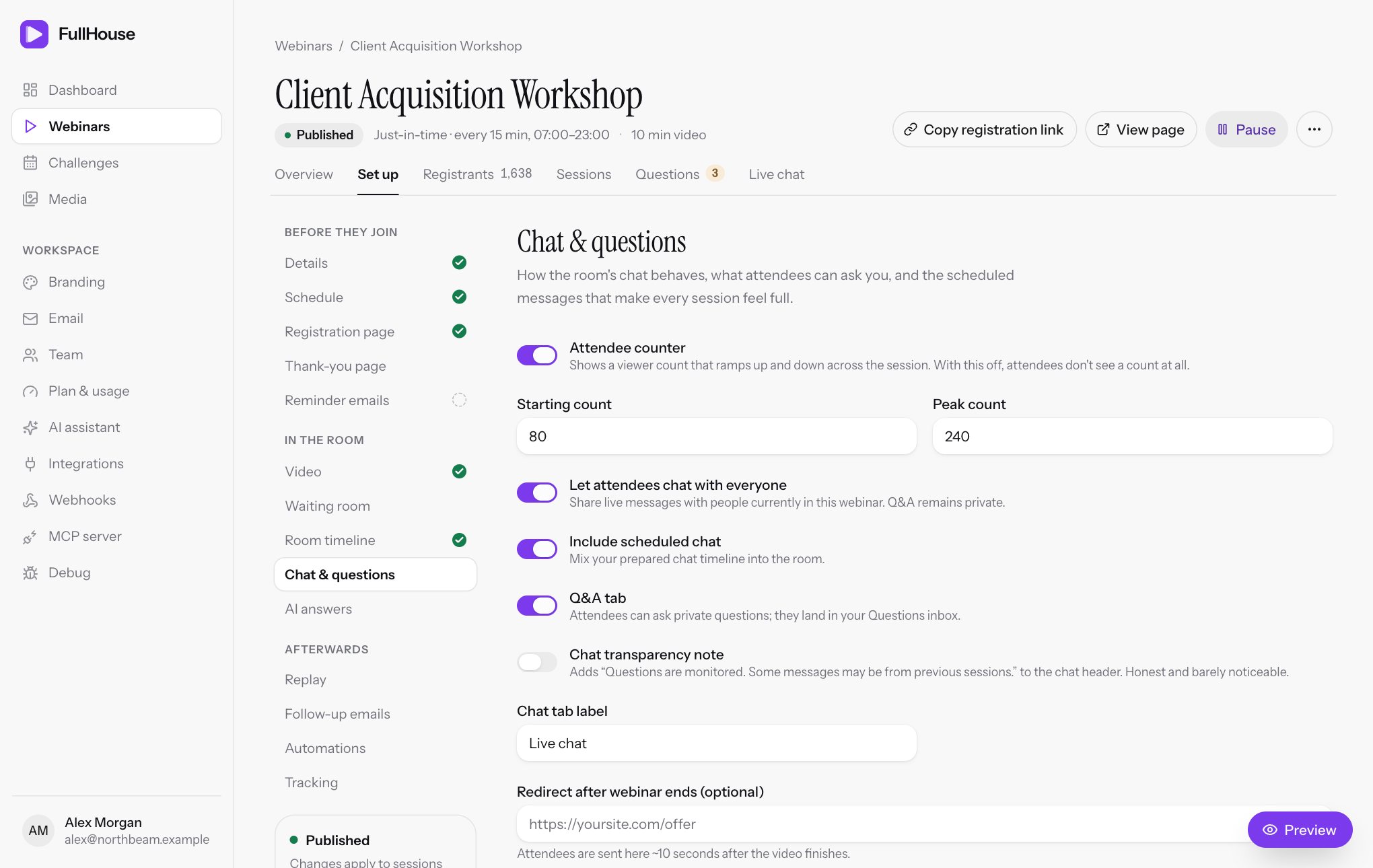
This step decides what attendees can say in the room, who can read it, and what happens when the video ends. Open it under Webinars → your webinar → Set up → Chat & questions. The preview on the right shows your changes as you make them. Choose Save changes when you’re done.
Understand the three kinds of message
The word “chat” can mean three different things in FullHouse. Knowing which is which makes the settings easy.
| Scheduled chat | Attendee messages | Private questions | |
|---|---|---|---|
| What it is | Your prepared script | What attendees type in the chat tab | What attendees type in the Q&A tab |
| Who sees it | Everyone | Depends on Let attendees chat with everyone | Only that attendee and you |
| Where you read it | Room timeline | Live chat when shared, Questions when private | Questions |
| In a replay | Yes, if Show chat on replay is on | No message box | Yes |
| AI can answer | No | No | Yes |
Choose how chat works
| Setting | What it does | Default |
|---|---|---|
| Let attendees chat with everyone | On: messages go to everyone in the room. Off: each person’s messages stay private to them. | Off |
| Include scheduled chat | Mixes your scheduled messages into the chat, in live sessions, and in replays when Show chat on replay is on too. | On |
The two settings combine:
| Shared chat | Scheduled chat | What the room feels like |
|---|---|---|
| Off | On | The default. A busy-looking chat, with no moderation to do, because nobody else sees what an attendee types. |
| On | On | Real conversation mixed with your script. You need to moderate it. |
| On | Off | Real conversation only. It can feel empty in small sessions. |
| Off | Off | An empty chat that says “Chat will appear here.” Consider turning on Q&A tab so people have somewhere to speak. |
When attendee messages are private
The message box reads “Send a private message to the host”, and what they send appears with an Only you badge. Nobody else sees it.
It isn’t lost: it lands in your Questions inbox marked “via live chat”, and if you reply, your answer appears in their Q&A tab. The AI assistant doesn’t answer these. The attendee’s own copy in the chat disappears if they reload the page.
Let attendees chat with each other
Turn on Let attendees chat with everyone and the room gets a real shared chat. You post, delete and mute from the Live chat page.
- Names: attendees appear by first name, or “Guest” if they gave none. Your messages show your account name with a Host badge.
- Own messages: they show as “You”, with an Everyone badge.
- Message box: it reads “Say something to the room”.
- Header line: with the Attendee counter on, the chat shows the same number as the LIVE badge, such as “1,240 here now · Messages are visible to everyone” under “LIVE · 1,240 watching”. With the counter off, it reads “Messages are visible to everyone”, with no number.
- Who shares a chat: the chat belongs to the webinar, not the session. If two sessions of the same webinar overlap, their attendees talk to each other.
- History: someone joining sees the last 100 messages from the past 10 minutes.
- Muting: a muted attendee sees “The host has muted your shared chat. Private Q&A remains available.” when they try to post. Their earlier messages stay until you delete them.
- After the session: shared chat closes when the video ends and doesn’t appear in the replay.
Attendees can send up to 20 messages a minute, each up to 2,000 characters. The box stops at that length.
Take private questions
Q&A tab is on by default. It adds a tab named Ask plus your presenter’s first name, such as “Ask Maya” (“Q&A” if the webinar has no presenter), and an Ask Maya a question button under the video.
Questions go to your Questions inbox, and they also fire the question.asked webhook. Your reply appears in the attendee’s tab within about 20 seconds. With AI answers on, the assistant replies first.
Turn it off and the tab and button disappear from live sessions and replays.
Attendees can ask 5 questions a minute. Past that, they see “Please wait 30 seconds before sending another question.” with the actual wait.
The tab tells attendees “Only you and Maya’s team see your questions. Replies appear here in the room.” FullHouse doesn’t email your replies, so someone who has left sees your reply when they come back to their room or replay link. If an answer matters, email them yourself.
Show a viewer count
Attendee counter shows a number beside the LIVE badge at the top of the room, such as “LIVE · 186 watching”, the same number in the shared chat header, and a smaller one in the waiting room. It’s on by default. It isn’t shown in replays. With it off, attendees don’t see a count at all.
| Setting | What it does | Default | Limits |
|---|---|---|---|
| Starting count | The number at the start of the video. | 80 | 0 to 100,000 |
| Peak count | The number it climbs towards. | 240 | 0 to 1,000,000 |
Set Peak count higher than Starting count. Nothing stops you doing the reverse, but then the count falls as the session starts.
To see real numbers, use the Sessions page.
Be upfront about scheduled messages
Chat transparency note adds a line at the top of the chat: “Questions are monitored. Some messages may be from previous sessions.” It’s off by default, and we suggest turning it on if you use a scheduled chat. It’s small, and it stops anyone feeling misled.
Rename the chat tab
| Setting | What it does | Default | Limits |
|---|---|---|---|
| Chat tab label | The name of the chat tab. | Live chat |
Required, up to 40 characters |
The other tabs aren’t editable: Ask (first name) comes from your presenter’s name, and Resources appears when the first handout unlocks. An offer has no tab: it sits at the head of the side panel on wide screens, and shows as a sheet or bar on phones.
Send people somewhere when it ends
Redirect after webinar ends (optional) sends attendees to a page of your choice after the video finishes. It must be an HTTPS address, up to 500 characters, or you’ll see “Enter a valid HTTPS URL.”
Here’s what happens:
- The video ends and the attendee sees the end-of-session page, with any open offer, the replay and the feedback form.
- A bar counts down: “Taking you to the next step in 10s”, with a Stay here button.
- At zero, the page changes to your address.
The countdown is canceled if they choose Stay here, click your offer, or start filling in the feedback form. They then get a Continue to the next step button instead.
It only applies to people who were in the room when the video ended. Someone who opens their link after the session sees the end-of-session page with no redirect, and replay viewers aren’t redirected.
Collect feedback
There’s nothing to set up here, and it can’t be turned off. Everyone who watched gets a form after the session: “How was it?” with 1 to 5 stars and an optional comment, up to 2,000 characters.
It appears on the end-of-session page, under the video from 30 seconds into a replay, and on the page shown when a replay has closed. Each person can rate once. Read the results in the overview report.
See The live room for how it looks.
When changes take effect
A save applies to every session straight away, including sessions already scheduled. Someone already in the room gets the new settings when they reload.
Scheduled chat on this step
The Scheduled chat section at the bottom of the step is covered in Scheduled chat.
Common problems
| What you see | What it means | What to do |
|---|---|---|
| Use 1 to 40 characters. | Chat tab label is empty or too long. | Fix the label. |
| Enter a valid HTTPS URL. | The redirect isn’t an https:// address. |
Include https://. |
| Enter a whole number between 0 and 100000. | Starting count is out of range. | Use a number in range. Peak count can go to 1,000,000. |