The registration page is where a visitor becomes an attendee. This page explains what they see and what happens when they submit. To change the content, see Registration page for webinars or Sign-up page and hub for challenges.
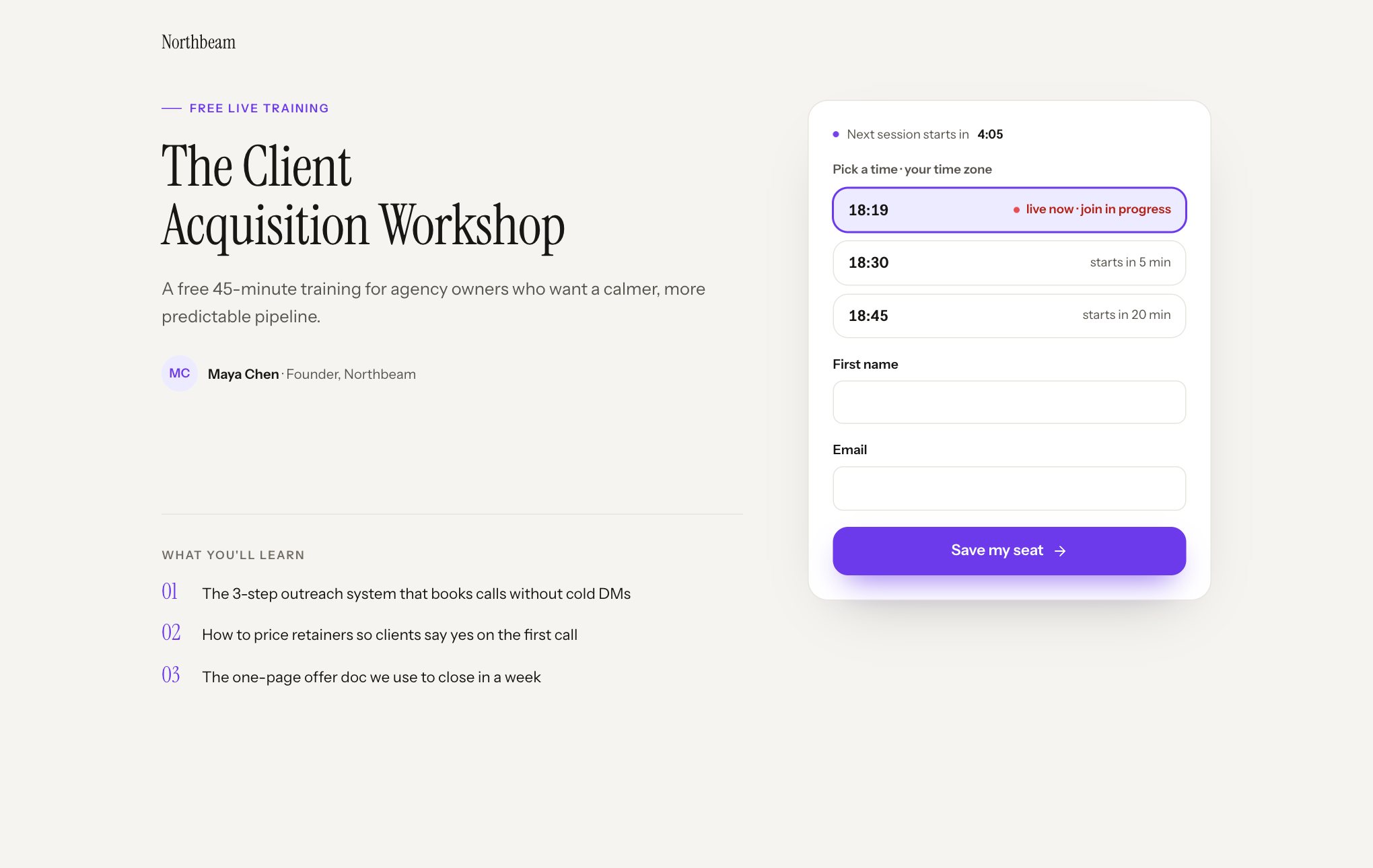
What’s on the page
From the top:
- Your logo or workspace name.
- The label above the headline, such as “Free live training”.
- The headline. If you leave it blank, the webinar’s public title shows instead.
- The subheadline, and the presenter’s name, title and photo.
- The form, in a card that stays in view on a computer.
- A numbered “What you’ll learn” list, if you’ve written one.
- Your legal footer.
The card ends with “We’ll email your personal join link straight away.” That line is hidden if your confirmation email is switched off.
Picking a session
Webinars show a choice of times, under a label like “Pick a time · your time zone”. A webinar with a fixed time zone shows “Pick a time · London time” instead. The first option is already selected, so a visitor can register without choosing.
| What the option shows | What it means |
|---|---|
| “6:00 PM”, “starts in 18 min” | Starting within the next 6 hours |
| “6:00 PM”, “Today”, “Tomorrow” or a weekday | Further ahead |
| “6:00 PM”, “live now · join in progress” | Already running and still open to latecomers. These come first in the list |
| “Watch now”, “starts as soon as you register” | An instant session. See below |
You choose how many options show with Session options shown (1 to 6, default 3). If the next session starts within 6 hours and the countdown is on, the card also shows “Next session starts in” with a running timer.
With nothing to offer, the card says “No upcoming sessions right now. Check back soon.” and the button is disabled. To fix that, add or extend your schedule.
Challenges have no picker. The form lists every day under “One sign-up covers all 5 days”.
What they fill in
| Field | When it shows | Limits |
|---|---|---|
| First name | Required by default. Can be optional or off | Up to 100 characters |
| Last name | Off by default. Can be optional or required | Up to 100 characters |
| Always, and always required | Up to 255 characters, must look like a real address | |
| Phone | Off by default. Can be optional or required | Up to 40 characters |
| Your questions | If you added any (up to 5) | Up to 1,000 characters per answer |
| Consent box | If you switched consent on. Must be ticked |
On challenges, only First name and Email are available, plus your questions and consent box.
Behind the scenes, the form also records their browser’s time zone, any utm_ tracking values in the link (up to 120 characters each), and the time they ticked the consent box. A hidden field catches spam bots, whose attempts are silently dropped.
Messages they can run into
| Message | Why | What they should do |
|---|---|---|
| “Enter a valid email address.” | The address is missing or malformed | Fix it |
| “Please complete this field.” | A required field is empty, or a value is too long | Fill it in or shorten it |
| “Please tick the consent box to continue.” | Consent is on and unticked | Tick it |
| “Please provide a valid answer.” | A required question is unanswered, or an answer is too long | Answer it |
| “Pick a session time first.” | No time was selected | Choose a time |
| “That session is no longer available — pick another time.” | That time was removed or closed while the page was open | Choose another time |
| “Too many attempts” and “Please wait a minute, then try again.” | More than 10 attempts in a minute from one network | Wait a minute, then choose Try again. This can catch a group on one office network all registering at once |
If a chosen time has passed while the page sat open, the attendee isn’t stopped. They’re placed in the next available time from the same schedule.
What happens next
A new registration:
- Creates their personal link.
- Sends them to their thank-you page, or to your own page if you set a redirect. Challenge attendees go to their hub.
- Sends the confirmation email and plans the reminders. See Attendee emails.
- Fires your
registrant.createdwebhook and any Registers automations.
Instant and just-in-time sessions
These two schedule types let someone start soon after registering.
Instant (“Watch now”). The session starts the moment they register. The thank-you page has nothing to count down to, so it carries them straight into the room within a moment. They still get the confirmation email, but reminders are skipped because their times have already passed.
Just-in-time. The page offers the next few slots at a regular interval, such as every 15 minutes, with a short minimum wait. They land on the thank-you page with a countdown, and if they keep the page open it takes them into the room when the timer reaches zero. Only reminders whose time is still ahead get sent, so a person registering 10 minutes before a slot gets no reminders.
Someone registers twice
Registering again with the same email and the same session doesn’t create a second registration, and their details aren’t updated. Instead:
- They see a page headed “Find your personal link”, which says “For your privacy, existing access links aren’t shown here.”
- We email them their link, with the subject “Your access link: your title”.
- That email sends at most once every 10 minutes per registration.
The page tells them to use the link they saved or check their confirmation email, and to contact you if they need help.
Why the link isn’t shown
If FullHouse showed the link on screen, anyone could type someone else’s email address and walk into their seat. Emailing it means only the owner gets it.
When a repeat does create a new registration
- A different session of the same webinar. Each session has its own registration, link and emails. To move to a new time instead, they can use the reschedule option.
- An instant session. Each “Watch now” registration is a new session, so a repeat creates a new registration each time.
- Upper and lower case don’t count as a difference.
[email protected]and[email protected]are the same person.
Challenges treat the whole challenge as one registration, so a repeat with the same email always gets the “Find your personal link” page.
Previewing
Preview in FullHouse opens your page with the banner “Preview: this is how visitors see your registration page.” It works for drafts and doesn’t count as a visit. The form doesn’t register anyone from a preview, so test with the real link once published.
When registration is closed
A draft or paused webinar or challenge shows visitors This page isn’t available on its registration page, reading “The event may be paused or finished, or the address may be wrong. Check the link you were sent, or contact the event host.” It uses your branding, and shows no event details. In the embedded popup, it shows Sign-ups aren’t open right now and “Please check back soon.” See Go live.