The Team page lets other people work in your workspace with their own login, so nobody has to share yours. Use it for an assistant, a colleague who runs your launches, or an agency building webinars for you.
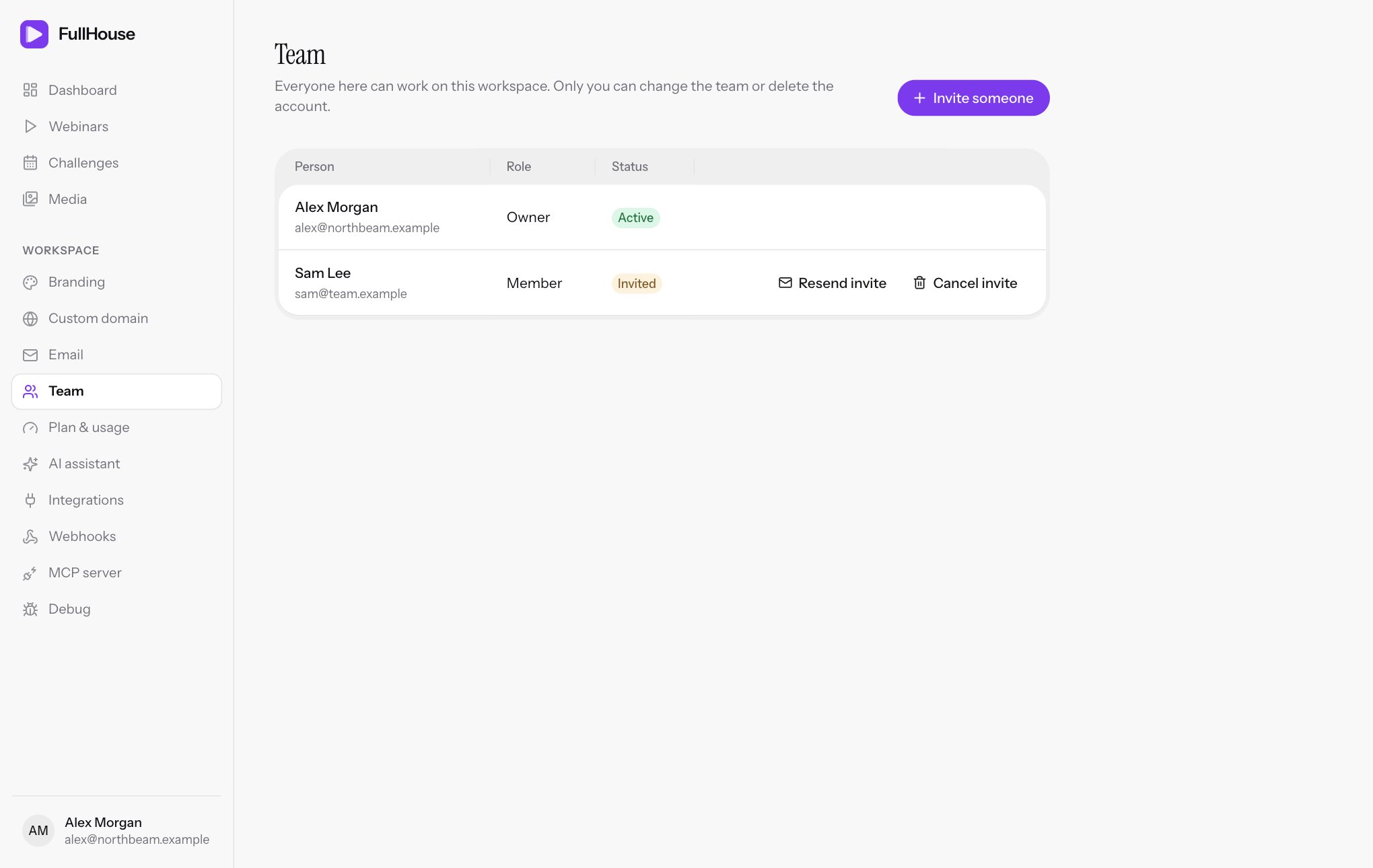
Open Workspace → Team. It lists everyone with their Role and Status. Everyone on the team can see this page, and only the owner sees the buttons that change it.
| Column | What it shows |
|---|---|
| Person | Their name and email address |
| Role | Owner or Member |
| Status | Invited until they’ve set a password, then Active |
Your plan doesn’t limit how many people you can invite.
Who can do what
The Owner is the person whose account the workspace belongs to. Everyone you invite is a Member. Members have the run of the workspace, so only invite people you trust with your attendee data and your connected tools.
| Owner | Member | |
|---|---|---|
| Create, edit, publish, pause and delete webinars and challenges | Yes | Yes |
| See and manage registrants, questions and live chat | Yes | Yes |
| Preview drafts | Yes | Yes |
| Upload and delete files in Media | Yes | Yes |
| Change Branding, Email, AI assistant, Integrations, Webhooks and Debug | Yes | Yes |
| Connect AI tools and create or revoke tokens under MCP server | Yes | Yes |
| See Plan & usage, which is read-only for everyone | Yes | Yes |
| See the Team page | Yes | Yes |
| Invite, resend an invite, cancel an invite or remove someone | Yes | No |
| Delete the account | Yes | No |
Each person keeps their own name, email address, password, two-factor authentication, passkeys and theme under Settings. See Account and security. Test emails go to the email address of whoever sends them.
The owner can’t be removed or changed from this page.
Invite someone
Open the form
Go to Workspace → Team and choose Invite someone.
Enter their details
Fill in Name and Email. One login belongs to one workspace, so use an address that isn’t already on FullHouse.
Send it
Choose Send invite. You’ll see “Invite sent to (email).”, and they appear in the list as Invited.
They get an email with the subject “(your name) invited you to (your workspace) on FullHouse” and a Set your password button. The link works for a year and only once. Setting a password also confirms their email address, and they show as Active from then on.
If the invite is refused
| Message | What it means | What to do |
|---|---|---|
| “Enter their name.” | Name is empty. | Fill it in. |
| “This person is already on your team.” | The address is already in the list. | Use Resend invite if they lost the email. |
| “This email already has a FullHouse account, and one login belongs to one workspace. Ask them to use a different email address.” | The address has its own workspace, or is on another team. | Ask them for another address. |
| “Too many attempts. Please retry later.” | You’ve sent more than 20 invites or resends in a minute. | Wait a minute. |
Change an invite
Someone who hasn’t set a password yet has two buttons beside their name:
- Resend invite sends a fresh email with a new link, and the old link stops working. You’ll see “Invite sent again to (email).”
- Cancel invite asks you to confirm, because “Their invite link stops working.” You’ll see “Invite canceled.” Their unused login is removed, so the address is free to use again.
Invite someone you removed
Someone you removed earlier can be invited again with the same address. They already have a password, so they’re added straight away without accepting anything, and you’ll see “(email) is on your team and can sign in with their existing password.” They get an email with the subject “(your name) added you to (your workspace) on FullHouse” and a Sign in button.
Tokens and apps they connected before they were removed stay disconnected.
Remove someone
Choose Remove beside their name. The dialog says “They lose access straight away, and any access tokens or apps they connected stop working. What they built stays in the workspace.” Choose Remove to confirm, or Keep them to back out. You’ll see “(name) no longer has access to this workspace.”
All of this happens at once:
- Every page of the app shows You no longer have access, with a Log out button. It reads “You’re not part of a FullHouse workspace right now. If you think this is a mistake, ask the workspace owner to invite you again.” They can still sign in and reach their own settings.
- Any live chat they have open closes, and they can’t reconnect.
- MCP tokens and connected apps they created stop working and leave the list.
- Draft previews stop opening for them.
What stays behind
Everything they built belongs to the workspace, so webinars, challenges, files and settings stay exactly as they are. That includes connections they set up: a Pinball link, webhook endpoints, and email and AI keys all keep working.
AI tools and tokens
The MCP server page has a Created by column, showing who connected each app or created each token. A member’s tokens and apps work for the whole workspace for as long as that person is on the team. Anyone on the team can revoke any of them.
People you add by hand
When anyone on the team adds a registrant, that person’s email address is recorded beside the registrant as Added by, along with their confirmation that they have permission to email them.
If you need your own workspace
A member’s login can’t own a workspace of its own while they’re on a team. Someone who wants their own FullHouse workspace needs to buy with a different email address, or be removed from the team first.
If a member tries to delete the account, they’re told: “Only the workspace owner can delete accounts. Ask them to remove you from the team.” The Delete account section doesn’t appear on a member’s Profile tab.
There’s no separate action for deleting a workspace. Deleting the owner’s account is what removes it. Members keep their logins, and see You no longer have access when they sign in.