The MCP server lets you run FullHouse by talking to your AI tool. Instead of clicking through each step, you can ask Claude or ChatGPT to set up a webinar, rewrite your reminder emails, reply to attendee questions or explain a report, and it does the work in your workspace.
What MCP is
MCP stands for Model Context Protocol. It’s a shared standard that lets AI apps plug into other software. On its own, your AI tool knows nothing about your webinars. Once you connect it to FullHouse, it can look things up and make changes for you, within the access you approve.
You don’t need to install anything in FullHouse or know any code to use it. For most AI tools, you paste one web address, sign in to FullHouse and choose what the tool may do.
What you can do with it
FullHouse gives your AI tool 57 tools covering most of what you do in the app:
- Build: create webinars and challenges, attach videos, set schedules, and write registration pages, offers, polls and handouts.
- Write: draft and update your emails, then send yourself a test.
- Run: read attendee questions and reply, post in live chat, register someone or resend their link, and unsubscribe or delete someone.
- Measure: ask what’s working, where people drop off and which traffic source brings the people who show up.
- Tidy: find unused files in Media, duplicate or delete challenges, change branding, and manage automations and webhooks.
Your AI tool can also chain these together. A single request such as “duplicate last month’s webinar, move it to Tuesdays at 6pm and rewrite the emails for the new topic” can run many steps.
Connect Claude
Claude on the web and desktop, plus Claude Code. Follow the steps.
Connect another tool
ChatGPT, Cursor, VS Code and others. See how.
Prompts to try
Paste-ready requests for real jobs. See the examples.
Every tool
All 57 tools with their inputs and limits. Read the reference.
Security
Access levels, revoking access and rate limits. Read about security.
Check your plan includes MCP
MCP access depends on your plan. To check yours, open Workspace → Plan & usage and find MCP server. It says either “Included” or “Not included in your plan.” See Plan and usage for more on plans.
If your plan doesn’t include it, you can still open Workspace → MCP server and read the page, but you’ll see a warning at the top:
MCP isn’t included in your [plan name] plan. Get in touch to move to a plan with MCP access. Anything already connected stops working until then.
While that warning shows:
- New access token is disabled.
- If you try to connect an app, its approval screen says MCP isn’t included and offers only Go back.
- Anything already connected stays in your list, but every action it tries is refused. Your AI tool may still look connected and list the tools. It fails when it tries to use one.
- You can still revoke or disconnect anything in the list.
When your plan includes MCP again, existing connections start working without being set up again, unless they’ve expired in the meantime. See plan changes for details.
If your workspace is suspended, the warning reads Your workspace is suspended and “AI tools can’t reach it until it’s reinstated.” Connecting and creating tokens are blocked until then.
Find the MCP server page
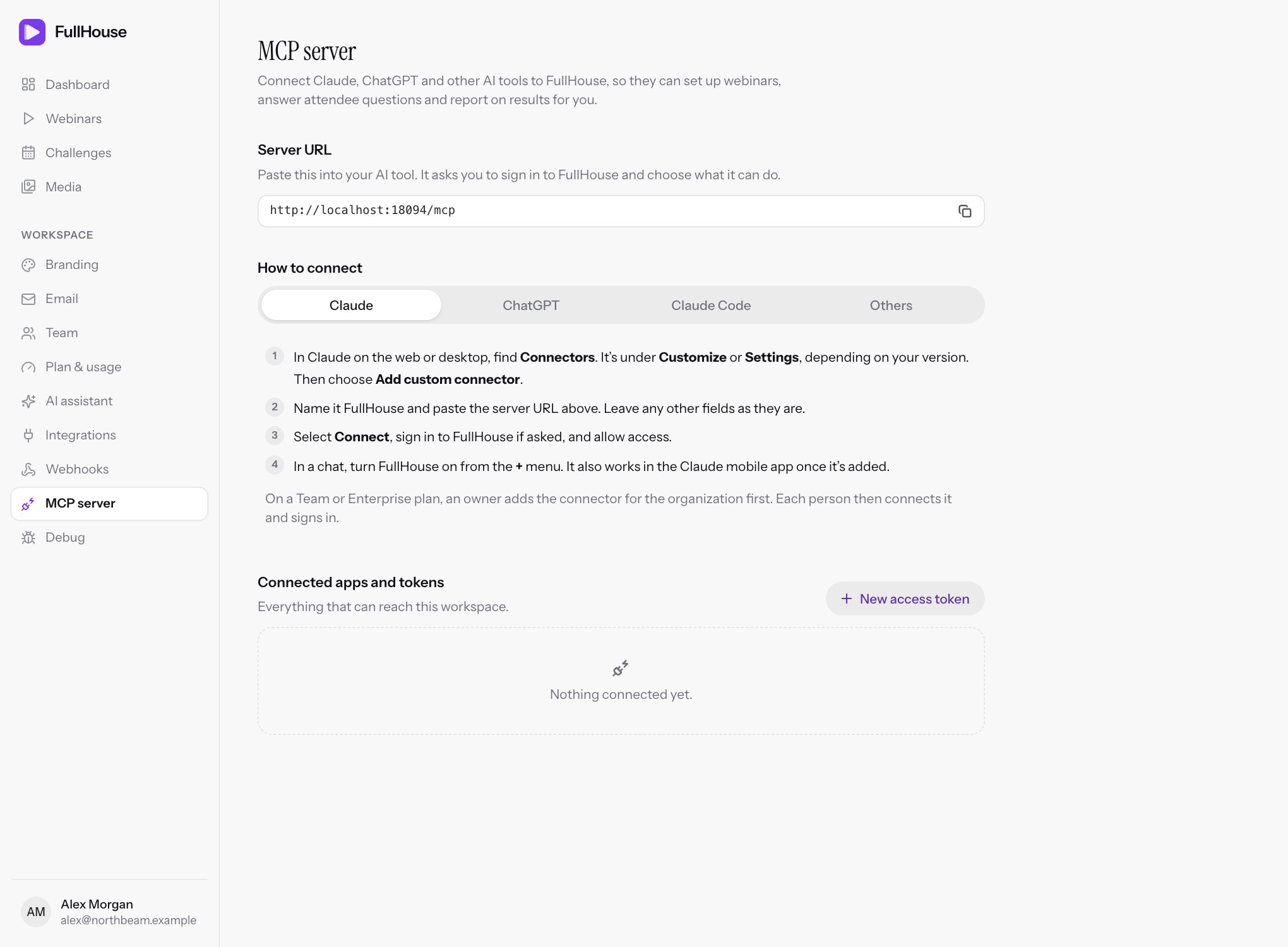
Open Workspace → MCP server in the sidebar. The page has three parts: Server URL, How to connect, and Connected apps and tokens.
Server URL
This is the address you paste into your AI tool:
https://app.meetfullhouse.com/mcpUse the copy button next to Server URL on the page so you always get the exact address for your account. The address doesn’t contain any secret, and it’s the same for everyone. Your AI tool still has to sign in to FullHouse before it can reach anything.
How to connect
This panel has short instructions for each kind of tool:
| Tab | What it shows | Full guide |
|---|---|---|
| Claude | Add a custom connector in Claude on the web or desktop, using the server URL. Once it’s added, it also works in the mobile app | Connect Claude |
| ChatGPT | Add a custom MCP server in ChatGPT, choosing OAuth for authentication | Connect ChatGPT |
| Claude Code | A command to add the server, then /mcp to sign in, or a second command that uses an access token |
Connect Claude Code |
| Others | The setup for any tool that supports remote MCP servers: add the server URL, choose HTTP, and sign in. It also shows a settings file snippet with only the URL, and another with a token for tools that need a header. Formats vary between tools | Connect other tools |
AI tools change their menus often, so if a label on this panel doesn’t match what you see, use the guides linked above. They explain what to look for.
Choose how to connect
There are two ways to connect. Use sign-in unless your tool can’t do it.
| Sign in with FullHouse | Access token | |
|---|---|---|
| Best for | Claude, ChatGPT, Cursor and most other tools | Command-line tools and your own scripts, or a tool that only accepts a header |
| How it works | You paste the server URL, sign in, then approve the app on a FullHouse screen | You create a token in FullHouse and paste it into the tool’s settings |
| Shows in your list as | App | Token |
| Expiry | Renews itself while the app is in use | The period you pick: 30 days, 90 days, a year, or never |
| If it leaks | The app holds the sign-in, so there’s no long-lived secret for you to handle | Anyone holding it can use your workspace until you revoke it or it expires |
Connected apps and tokens
This list shows everything that can reach your workspace. When nothing is connected, it says “Nothing connected yet.”
| Column | What it shows |
|---|---|
| Name | The app’s name or your token’s name, with an App or Token label. Below it, a token shows its first few characters and its expiry date (or “never expires”). An app shows its web address when FullHouse knows it, otherwise “Signed in with OAuth”, with “signed in 2 times” if it has signed in more than once. |
| Access | Full access or Read only |
| Last used | How long ago it was last used, or “Never”. This updates about every five minutes, not on every action. |
| Connected | How long ago it was connected or created |
| Created by | Who on your team connected or created it |
| Button | Disconnect for an app, Revoke for a token |
Expired tokens and apps that haven’t been used for 90 days drop off this list because they can no longer reach your workspace.
Sign-ins from the same app with the same access level show as one row, and Disconnect closes all of them. A different access level stays a separate row.
Anyone on your team can connect apps, create tokens, and disconnect or revoke any of them. If someone is removed from the team, the apps and tokens they created stop working and leave this list.
Create an access token
Use a token for tools that can’t do the sign-in step.
Open the form
Go to Workspace → MCP server and select New access token.
Fill it in
Use the fields in the table below, then select Create token.
Copy the token
A green Copy your new token now message appears at the top of the page. It won’t be shown again, so copy it straight away. Treat it like a password, because anyone with it can manage your workspace.
Use it in your tool
While the message is on screen, the commands under the Claude Code and Others tabs already include your new token, ready to copy. After you leave the page they go back to showing YOUR_TOKEN.
| Field | What it does | Default | Limits |
|---|---|---|---|
| Name | A label so you know what to revoke later, such as “Claude Code on my laptop” | Empty | Required, up to 60 characters |
| Access | Full access can read and make changes. Read only can look things up and report. | Full access | Choose one |
| Expires | When the token stops working: In 30 days, In 90 days, In a year or Never | In 90 days | Choose one |
You can have up to 20 tokens, and expired ones don’t count. You can’t change a token after creating it, so to change its access or expiry, create a new one and revoke the old one.
Revoke a token or disconnect an app
- Find it under Connected apps and tokens.
- Select Revoke or Disconnect.
- Confirm with Revoke token or Disconnect in the dialog.
It stops working straight away. You can connect an app again later, but a revoked token is gone for good. More on this in Security.
Your first request
Once connected, start with something that changes nothing:
Use FullHouse to give me an overview of my workspace: my plan and usage, whether email is ready to send, and how my webinars have done over the last 30 days.If you get a real answer about your account, the connection works. Then try the example prompts.
If something goes wrong
Your AI tool usually passes these FullHouse messages on to you.
| Message | What it means | What to do |
|---|---|---|
| “Sign in to FullHouse to use this server.” | The tool has no valid sign-in or token, or the token has expired or been revoked | Reconnect the tool, or create a new token |
| “This connection is read-only. Reconnect FullHouse with full access to make changes.” | You chose Read only | Disconnect it, connect again and choose Full access. For a token, create a new one. |
| “MCP access isn’t included in this workspace’s FullHouse plan. Upgrade the plan to use FullHouse from AI tools.” | Your plan doesn’t include MCP | Move to a plan with MCP access |
| “MCP access isn’t included in your plan.” | You tried to create a token without MCP on your plan, or while your workspace is suspended | Check the warning at the top of the page |
| “This FullHouse workspace is suspended, so it can’t be used over MCP. Contact FullHouse support.” | The workspace is suspended | Contact support |
| “You can have up to 20 tokens. Revoke one you no longer use first.” | You’ve reached the limit | Revoke a token you don’t use |
| “Too many requests: this connection can make 300 a minute.” | The tool is working too quickly | It can retry after a short wait. See rate limits. |
| “Not found in this workspace. Check the id (list tools show valid ones).” | The tool used a wrong ID, or something that was deleted | Ask it to look the item up again |
| “That isn’t allowed for this workspace.” | FullHouse refused the action | Try the same thing in the app to see why |
| “FullHouse couldn’t finish that just now. Try again in a moment.” | A temporary problem | Try again |
| “This origin may not call the FullHouse MCP server.” | A browser-based tool that FullHouse doesn’t recognise tried to connect | Use the tool’s desktop version or a supported tool |
Problems during the sign-in step are covered in Connect Claude, under the approval screen.