Every confirmation, reminder and follow-up goes out through the sender you choose here. FullHouse Send works out of the box with nothing to set up. Connect your own provider if you want to send from your own domain, or if you expect to send more than your plan’s daily allowance.
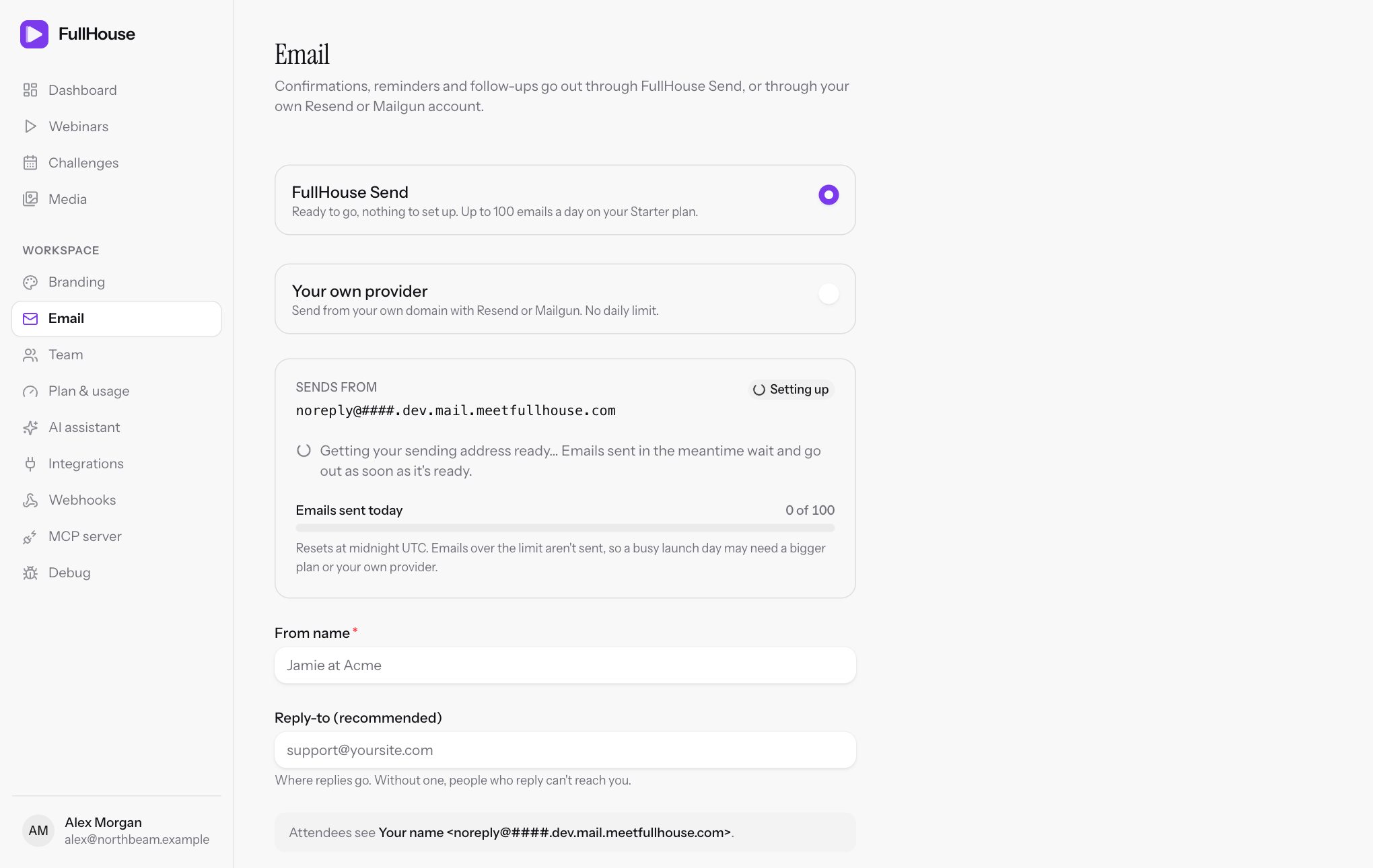
Open Workspace → Email.
Choose how email is sent
| FullHouse Send | Your own provider | |
|---|---|---|
| Setup | None | A Resend or Mailgun account and a verified domain |
| Sending address | A FullHouse address such as noreply@1234. followed by the FullHouse sending domain |
Any address on your verified domain |
| Daily limit | Your plan’s allowance, shown on the page | No limit from FullHouse |
| Bounce and spam counts in FullHouse | Yes, on Plan & usage | No, check your provider’s dashboard |
| Spam reports stop future email automatically | Yes | No, only the unsubscribe link does |
Start with FullHouse Send unless you already have a provider. A busy launch is the usual reason to switch: 500 registrants getting three reminders each is 1,500 emails, and a lot of them land on the same day.
Use FullHouse Send
FullHouse Send is the default. The first time you open the Email or Plan & usage page, FullHouse sets up a private sending address for your workspace, including its domain verification and DNS records. You don’t touch DNS.
The status chip next to Sends from tells you where it’s up to:
| Status | Meaning | What to do |
|---|---|---|
| Setting up | Your address is being created and its DNS records checked. This usually takes a minute or two. | Nothing. The page updates itself. Emails sent in the meantime wait and go out as soon as it’s ready. |
| Ready | You can send. | Set your From name and send a test. |
| Needs attention | Setup didn’t finish. An alert headed “Your sending address couldn’t be set up” shows why. FullHouse has been alerted. | You can wait for it to be fixed, or connect your own provider. Emails wait rather than fail, and FullHouse keeps trying them. |
Setup is marked as needing attention if the DNS records haven’t verified after two hours.
You can’t change the address. You can change the name people see and where their replies go.
If FullHouse Send can’t be used at the moment, its option says so and asks you to connect your own provider instead.
Set your sender details
| Field | What it does | Limits |
|---|---|---|
| From name | The name in the inbox, such as “Jamie at Acme”. | Required, up to 100 characters |
| Reply-to (recommended) | Where replies go. The sending address is a no-reply address, so without this, people who reply can’t reach you. | Valid email, up to 200 characters |
The page shows a live preview: “Attendees see Jamie at Acme, and replies go to [email protected].”
Click Save settings. The Go live checklist item Email sender ready stays incomplete until a From name is saved.
The daily limit
The Emails sent today meter counts every email FullHouse Send sends for your workspace: confirmations, reminders, follow-ups, re-sent access links and your own tests. Account emails to you, such as password resets, don’t count. Each email counts once even if it needs more than one attempt, and an email that wasn’t sent doesn’t use up your allowance.
The meter turns amber at 75% and red at 90%. The count resets at midnight UTC, not midnight where you are.
When you hit the limit
Emails over the limit aren’t sent, and they aren’t sent automatically later. Each one is marked as failed straight away with this message:
Daily FullHouse Send limit reached (100 emails a day on the Starter plan). It resets at midnight UTC. Connect your own email provider for unlimited sending.The number and plan name in your message will be your own.
To recover:
Stop more failures
Connect your own provider, or ask us about a bigger plan. Otherwise, wait until midnight UTC for the allowance to reset.
Open Debug
Go to Workspace → Debug and find the emails under Failed emails.
Retry what still matters
Click Retry on each email that’s still useful. Skip anything out of date: a “starting in 15 minutes” reminder sent after the webinar ended only confuses people. See Debug.
Before a launch, add up what you expect to send on your busiest day and compare it with your limit. Don’t forget the confirmation each new registrant gets the moment they sign up.
Other waits
If FullHouse Send is at a temporary sending cap, or your address is still being set up, emails wait and go out when they can. In Debug they show as processing. These emails aren’t lost, they don’t count as failures, and you don’t need to do anything.
Connect your own provider
Use Resend or Mailgun when you want email to come from your own domain and don’t want a daily limit from FullHouse. You’ll set up the domain with the provider first, because FullHouse relies on the provider’s verification.
Set up in Resend:
- In Resend, open Domains, add your domain and add the DNS records Resend shows you at your domain host.
- Wait until Resend shows the domain as verified.
- Open API Keys and create a key that’s allowed to send. Copy it. Resend only shows it once.
Connect in FullHouse:
- Select Your own provider, and choose Resend under Provider.
- Paste the key into API key. Resend keys start with
re_. - Fill in From name and From address, plus Reply-to if replies should go somewhere else.
- Click Save settings, then send a test.
Set up in Mailgun:
- In Mailgun, add a sending domain, such as
mg.yoursite.com, and add the DNS records Mailgun shows you at your domain host. - Wait until Mailgun shows the domain as verified. Note whether you created it in the US or EU region.
- Open the domain’s settings and create a sending API key, or use your account’s private API key. Copy it. Mailgun shows new keys only once.
Connect in FullHouse:
- Select Your own provider, and choose Mailgun under Provider.
- Paste the key into API key.
- Enter the domain in Mailgun domain. If it’s in Mailgun’s EU region, put
eu.in front, for exampleeu.mg.yoursite.com. - Fill in From name and From address, plus Reply-to if you like.
- Click Save settings, then send a test.
Fields
| Field | What it does | Limits |
|---|---|---|
| Provider | Resend or Mailgun. | Required |
| API key | Your provider key. Stored encrypted and never shown again. Leave it blank to keep the saved key. | Up to 200 characters. Required when you first connect or change provider. |
| Mailgun domain | The Mailgun sending domain. Only for Mailgun. | Required for Mailgun, up to 200 characters |
| From name | The name in the inbox. | Required, up to 100 characters |
| From address | The address email comes from. It must be on the domain you verified with your provider. | Required, valid email, up to 200 characters |
| Reply-to (optional) | Where replies go, if not the from address. | Valid email, up to 200 characters |
FullHouse doesn’t check that your domain is verified when you save. Your provider decides that when each email is sent, so always send a test.
Switch between senders
Your From name and Reply-to carry over when you switch.
- To FullHouse Send: select FullHouse Send and click Switch to FullHouse Send. Scheduled emails use it from then on.
- Back to your own provider, or to the other provider: you need to paste the API key again. You’ll see “Paste your API key to connect this provider.” if you don’t.
Send a test
Once your settings are saved, Send a test to me appears next to the save button. It sends a short test email to your account email address, using your real sender and branding.
- The button only shows when your changes are saved, so save first.
- On FullHouse Send, it’s disabled until the status is Ready.
- The result shows next to the button, such as “Last test 2 minutes ago: sent”, and any error shows above the buttons.
- You can send five tests a minute. After that you’ll see “Too many attempts. Please retry later.”
- A test sent through FullHouse Send counts towards your daily allowance.
Check more than the arrival: open the email’s headers or your spam folder, and confirm the sender name, reply address and colours look right.
When emails fail with your own provider
| Message | What it means | What to do |
|---|---|---|
| Email provider rejected delivery (HTTP 401) or (HTTP 403) | The provider refused your key, or the key isn’t allowed to send from that address. | Create a new key at the provider and paste it into API key. Check that From address is on a verified domain. |
| Email provider rejected delivery (HTTP 422) or similar | The provider refused the message, most often because the from address isn’t on a verified domain. | Verify the domain, or correct From address. |
| Email provider rejected delivery (HTTP 429) or (HTTP 5xx) | Your provider was rate limiting or unavailable. FullHouse tries twice more. | If it still fails after that, retry from Debug. |
| Email provider request failed. | FullHouse couldn’t reach the provider. It tries twice more. | Retry from Debug if it stays failed. |
| Invalid Mailgun domain. | The Mailgun domain contains something other than letters, numbers, dots and hyphens. | Enter only the domain, without https://. |
| Workspace email is not configured. | The key or from address is missing. | Complete the form and save. |
Rejections such as a bad key or an unverified domain are not retried automatically, because they won’t fix themselves. Correct the setting, then retry the failed emails from Debug.
Get your emails delivered
Most of this applies whichever sender you use:
- Authenticate your domain. With your own provider, set up SPF and DKIM as the provider instructs, and add a DMARC record. Without them, Gmail and Yahoo may reject or spam your mail. FullHouse Send takes care of this for its own address.
- Use a subdomain. Sending from something like
mail.yoursite.comprotects your main domain’s reputation if a campaign goes badly. - Set a reply address and read the replies. Conversations are a positive signal for mailbox providers.
- Only email people who signed up. Bought lists cause bounces and spam reports, and those damage delivery for your real registrants.
- Keep links clean. Don’t use URL shorteners, and match the link text to where it goes.
- Ask registrants to look out for you. The thank-you page is a good place to ask people to add your address to their contacts.
- Warm up new domains. A brand-new domain sending thousands of emails on day one looks like spam. Start small and build up.
- Watch your numbers. On FullHouse Send, Plan & usage shows delivered, bounced and spam reports for the last 7 days.
Unsubscribes
Every reminder and follow-up carries an Unsubscribe link in the footer. Clicking it opens a page where the person confirms, which stops the remaining emails for that registration, or for every day of a challenge. FullHouse Send and your own Resend or Mailgun account both tell inboxes about a one-click unsubscribe option. FullHouse Send also treats a spam report as an unsubscribe across your webinars. With your own provider, spam reports stay with your provider, so check its dashboard. See What attendees see.
Related
- Reminder emails and Follow-up emails for wording and timing
- Merge tags for personalising emails
- Debug for finding out what happened to one person’s email